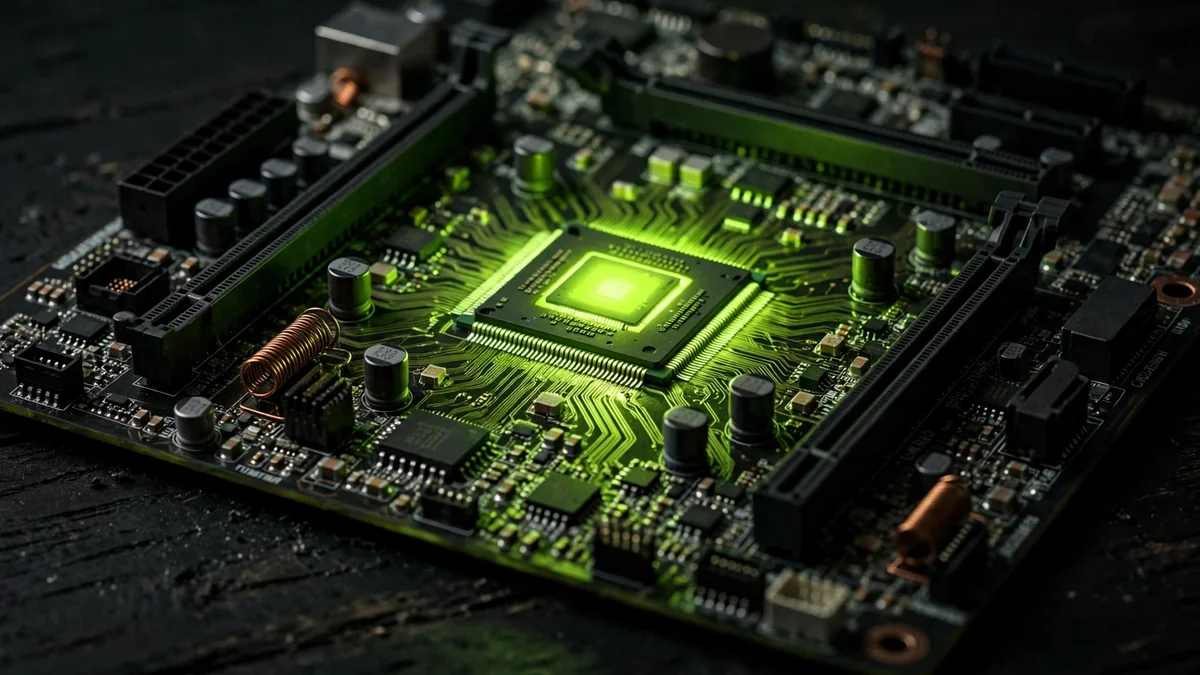
BIOS explained in plain terms means understanding the first program your computer runs every time you switch it on. The central question is how a machine with no operating system loaded yet knows how to wake up its own hardware, and the short answer is that the BIOS is a small program stored on the motherboard that checks the hardware, finds a drive to boot from, and hands control to the operating system.
Most people never see the BIOS. The computer shows a logo for a few seconds, then the operating system appears, and the whole process feels instant. Behind that brief pause, though, the BIOS has tested the memory, found the keyboard and the drives, and decided which one holds the system to start.
The BIOS is older than the modern computer itself, and it is gradually being replaced by a newer system called UEFI. Understanding what the BIOS does, and why it is changing, explains a lot about how computers start, and what to do when they refuse to. This article explains what the BIOS is, how it works, and how it compares with its replacement.
Key takeaways
- The BIOS is firmware stored on the motherboard that runs before the operating system.
- It tests the hardware, finds a bootable drive, and starts the operating system.
- BIOS settings control the boot order, the clock, and basic hardware options.
- It lives on a chip, so it works even when no operating system is installed.
- UEFI is replacing BIOS on new computers, with faster booting and more features.
What the BIOS is
BIOS stands for Basic Input/Output System, and it is a small program built into the motherboard of a computer. Unlike ordinary software, which lives on a hard drive, the BIOS lives on a chip, so it is available the moment the power comes on, before any drive has been read. Its job is to prepare the machine so that the operating system can take over.
The BIOS is firmware, which means software that is stored permanently in hardware. Early BIOS programs were stored on chips that could only be replaced physically, but modern ones live on flash memory that can be updated with a new version, a process called flashing. That update ability matters, because a BIOS update can add support for a new processor or fix a fault in the way the board talks to its hardware.
The BIOS also holds the computer’s settings, such as which drive to boot from first, whether the fan should run quietly or at full speed, and what time the clock shows. Those settings are kept in a small memory that is powered by a coin battery on the board, which is why a computer can forget its settings if that battery runs flat. Our guide to the motherboard explains the board the BIOS lives on, and our guide to firmware explains the wider idea of software stored in hardware.
How the BIOS works
When you press the power button, the processor wakes up with no memory of anything, and its first instruction is to run the BIOS from the chip on the motherboard. The BIOS then runs a power-on self-test, checking that the memory is present and working, that the keyboard is connected, and that the graphics card and drives respond. If something important is missing, the computer may beep in a pattern that identifies the fault, or show an error on screen.
Once the hardware checks pass, the BIOS looks for a bootable drive, following the boot order set in its settings. It reads the first sector of each drive in turn, looking for the small piece of code that starts the operating system. When it finds one, it loads that code into memory and hands control over to it, and from that moment the operating system is in charge.
The BIOS also provides a simple setup screen, usually reached by pressing a key such as Delete or F2 during startup. From there, a user can change the boot order, enable or disable hardware, set a password that must be entered before the computer will start, and adjust the clock. The screen is deliberately plain, because it runs before the operating system, and it has no mouse-driven interface to fall back on.
Before the operating system loads its own drivers, the BIOS provides the basic routines that let software talk to the hardware. Early operating systems relied on those routines heavily, but modern systems load their own drivers as soon as they start, so the BIOS is mainly needed for the first few seconds of the boot process.
Comparing BIOS with UEFI
UEFI, the Unified Extensible Firmware Interface, is the modern replacement for the BIOS, and almost every new computer ships with it. It does the same job, but it is faster, more capable, and better suited to modern hardware.
The table below sets out the main contrasts between the two systems.
| Aspect | BIOS | UEFI |
|---|---|---|
| Age | From the early 1980s | From the 2000s, standard now |
| Boot speed | Slower, one drive at a time | Faster, parallel start-up |
| Drive size limit | About 2 TB | Far larger, no practical limit |
| Interface | Text menus, keyboard only | Graphical, mouse support |
| Security | Basic password only | Secure Boot checks the system |
| Hardware support | Older processors and boards | Modern processors and drives |
The practical result is that BIOS remains relevant for older machines and for anyone repairing one, while UEFI is the standard on anything bought in the last decade. The two are often confused, because many computers still call their UEFI setup screen a BIOS screen, out of habit.
Where the BIOS is used
Every traditional personal computer has a BIOS or its UEFI successor. Desktops, laptops, and servers all start the same way, with firmware on the board testing the hardware and finding the operating system, and that firmware is what makes the machine usable before any software is installed.
Repair and recovery is a common reason to meet the BIOS. When a computer will not start, the BIOS setup screen is often the first place to look, because it shows whether the drives are detected, whether the memory is recognised, and which drive the machine is trying to boot from. Changing the boot order there is how a technician starts a computer from a USB stick to repair it.
Installing a new operating system also goes through the BIOS. The installer is usually booted from a USB drive or a disc, which means changing the boot order so the machine looks at that device first, and that setting lives in the BIOS.
Upgrading hardware can involve the BIOS too. A new processor or a larger drive may need a newer BIOS version to be recognised, and the update is applied by flashing the chip, a process that must not be interrupted, because a failed flash can leave the board unable to start at all.
Embedded devices and industrial machines use BIOS-like firmware as well. Cash machines, factory controllers, and medical equipment all need a reliable way to start themselves without an operator, and the same idea of firmware on a chip testing hardware before handing over applies there too.
Strengths and limits
The greatest strength of the BIOS is simplicity. It is small, it has one job, and it has worked the same way for decades, which makes it reliable and easy to understand. A technician who learned the BIOS in the 1990s can still find their way around a modern one.
It is also a strength that the BIOS lives on the board itself. It needs no drive, no operating system, and no network, so it can start a machine that has nothing else installed, and it can diagnose a machine whose drives have failed.
The limits are real, though. The BIOS was designed when computers were far simpler, and it cannot handle drives larger than about two terabytes, cannot boot quickly, and offers almost no security against tampered software. Its text-only interface is also hard to use, and it cannot take advantage of modern hardware. Those limits are exactly why UEFI replaced it.
BIOS checklist
- Learn which key opens the setup screen on your computer before you need it.
- Note the current boot order before changing it, so you can put it back.
- Keep the coin battery in mind if the computer forgets its settings or clock.
- Update the BIOS only when there is a clear reason, such as new hardware support.
- Never interrupt a BIOS update, and keep the power connected throughout.
- Set a setup password if the computer is shared or left unattended.
- Check that drives appear in the BIOS before blaming the operating system.
- Use Secure Boot on a UEFI system to block tampered start-up software.
- Write down any settings you change, since a reset can wipe them all.
Frequently asked questions
What does BIOS stand for?
BIOS stands for Basic Input/Output System. It is the firmware on a motherboard that starts the computer, tests the hardware, and loads the operating system.
Can a computer work without a BIOS?
No, or rather, it needs firmware of some kind. Modern computers use UEFI instead, which does the same job with more features. Either way, something has to wake the hardware up before the operating system can load.
How do I enter the BIOS setup screen?
Press the key shown on screen during start-up, commonly Delete, F2, or F10, before the operating system begins loading. The exact key varies by manufacturer.
Is it safe to update the BIOS?
Usually yes, if you follow the manufacturer’s instructions and do not interrupt the process. Only update when there is a reason, such as support for new hardware or a known fault.
What is the difference between BIOS and UEFI?
UEFI is the modern replacement for BIOS. It boots faster, supports larger drives, has a graphical interface, and includes Secure Boot, which checks that start-up software has not been tampered with.
Why does my computer forget its settings?
Usually because the small coin battery on the motherboard has run flat. That battery keeps the BIOS settings and the clock alive while the computer is off, and replacing it fixes the problem.
The bottom line
BIOS explained in one line is this: the small firmware program on the motherboard that tests the hardware, finds a drive to boot from, and hands the computer over to the operating system.
It is being replaced by UEFI on new machines, but it remains the foundation of how computers start, and knowing how to reach its setup screen is one of the most useful skills for anyone who looks after their own computer.
This article is general information about how the BIOS works, not advice about updating firmware or repairing a particular computer.