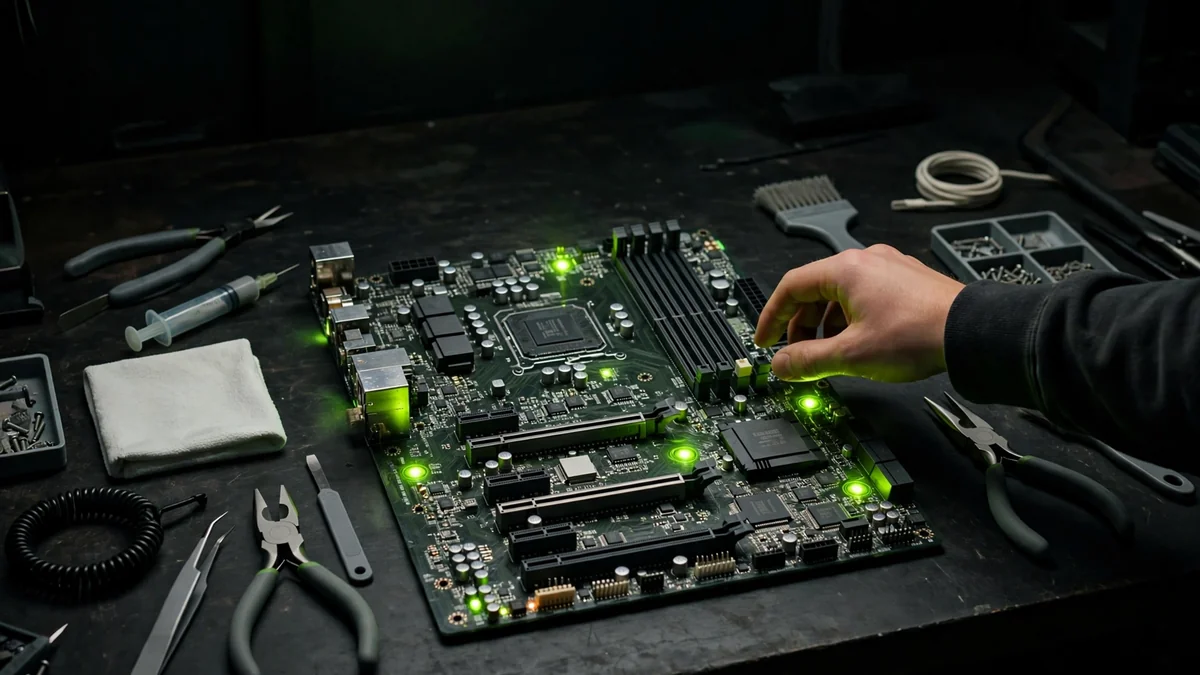
Motherboard explained in plain terms means the large circuit board inside every computer that connects all the parts together, so the processor, memory, storage, and everything else can talk to each other. The central question is why a computer needs a central board at all, and the short answer is coordination: without one shared meeting place, every part would need a direct wire to every other part.
Think of a town square with roads running to every building. The square itself does nothing, but without it the town cannot function: deliveries, messages, and people all pass through it. The motherboard is that square, and the components are the buildings around it.
Every computer has one, from the smallest phone, where the board is tiny and everything is soldered down, to the largest server, where the board is a landscape of sockets and slots. On a desktop PC, it is the part you see when you open the case: a flat board, usually dark green or black, covered in chips, slots, and connectors.
Key takeaways
- The motherboard is the central circuit board connecting every part of a computer.
- It holds the processor socket, memory slots, and storage connectors.
- It distributes power and carries data between components.
- Its chipset decides which processors, memory, and features it supports.
- Choosing one is mostly about compatibility and the connections you need.
What a motherboard is
A motherboard is a printed circuit board, a flat sheet of fibreglass with copper traces etched into it, carrying the electrical paths that connect a computer’s components. The traces are the roads, the sockets are the junctions, and the chips soldered to the board are the traffic controllers that decide what goes where.
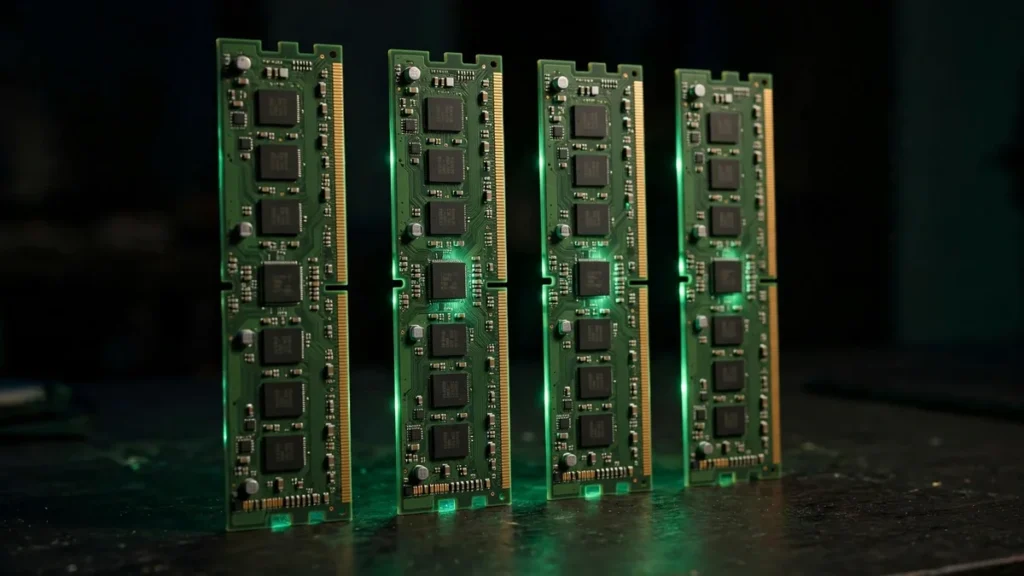
The most important socket is the one for the processor, the CPU. It is a precise grid of pins or contacts, matched to a particular family of processors, and it is the reason motherboards are not interchangeable: a board built for one processor family cannot take another. Around it sit the memory slots, usually four, which hold the RAM sticks, and the long slots for expansion cards, such as graphics cards.
The chipset is the board’s brain for coordination. It is a set of chips that manages the flow of data between the processor, memory, storage, and peripherals, and it decides which features the board supports: how many USB ports, how fast the storage can run, whether it can overclock. Two boards for the same processor can differ enormously in what their chipset allows.
Around the edges are the connectors: power from the supply, SATA ports for drives, M.2 slots for fast SSDs, fan headers, and the rear panel with USB, network, and audio ports. The board also carries the BIOS or UEFI firmware, the small program that wakes the computer up, checks its parts, and hands control to the operating system. Our guide to graphics cards explains the most power-hungry guest the motherboard hosts, and why the slot it plugs into matters so much.
How a motherboard works
It begins with power. When the power button is pressed, the supply sends electricity to the board, which distributes it through voltage regulators to each component at the exact voltage it needs. The regulators matter more than they look: a processor that receives dirty or unstable power crashes, and good boards spend real money on clean power delivery.
Next, the firmware runs. The UEFI program stored on the board checks that the processor, memory, and storage are present and working, then looks for something to boot from. It is a small, fast check, and on a healthy machine it finishes in a second or two, handing over to the operating system on the drive.
Once the system is running, the motherboard’s job is traffic. The processor talks to memory through fast lanes built into the board, to storage through its connectors, and to the graphics card through the long PCIe slot, a high-speed highway with many lanes. The chipset arbitrates, making sure a drive writing data does not block the network card, and that everything gets its fair share of attention.
The board also carries the buses that peripherals use. USB ports, audio jacks, network sockets, and the pins for the case’s buttons and lights all run through the board, which translates between the outside world and the processor. It is, in the literal sense, the computer’s nervous system: nothing touches anything else without passing through it. Our guide to SSDs explains the storage that plugs into the board’s fastest slots, and why the connection type decides how fast a drive can really go.

Comparing motherboard sizes
| Aspect | Mini-ITX | Micro-ATX | ATX |
|---|---|---|---|
| Size | 17 by 17 centimetres | 24 by 24 centimetres | 30 by 24 centimetres |
| Memory slots | Usually two | Usually four | Usually four |
| Expansion slots | One | Two or three | Four or more |
| Best for | Tiny, quiet PCs | Compact builds on a budget | Full-size PCs with room to grow |
Where motherboards matter
Building a PC starts with the board. Every other choice, processor, memory, graphics card, case, must match it, and a wrong choice means parts that do not fit or do not work together. Builders pick the board first, or at least early, because it sets the limits of everything else.
Gaming PCs show the board at its most elaborate. Large boards with heavy power delivery, fast memory support, and several expansion slots let a machine run a top graphics card, fast storage, and extra cards for capture or networking, all at once, without anything holding the rest back.
Servers use boards built for reliability rather than speed. They carry slots for error-correcting memory, which catches and fixes the rare bit-flips that would corrupt a server’s work, and they offer remote management, so an administrator can restart or repair a machine hundreds of miles away.
Small devices hide their boards entirely. A laptop’s board is shaped to fit its case, with everything soldered down, and a phone’s board is a sliver of circuitry under the battery. The motherboard is still there, doing the same job, only miniaturised past the point of recognition.
Strengths and limits
The greatest strength of the motherboard is that it makes a computer modular. Because every part connects through standard sockets and slots, a user can replace one piece, more memory, a faster drive, a better graphics card, without replacing the whole machine. That modularity is why desktop PCs last so long and upgrade so cheaply.
It also concentrates complexity in one place. A builder deals with one board, one manual, and one set of connectors, instead of a tangle of separate parts. The standardisation of sizes and sockets, built over decades, is what makes building a PC something an enthusiastic amateur can do in an afternoon.
Its limits are that it is also the single point of failure. If the board dies, the whole machine dies with it, and replacing it often means replacing the processor and memory too, because the new board will use newer sockets. It is the one part whose failure is effectively the death of the computer.
Compatibility is the other trap. Sockets change every few years, memory standards move on, and a board bought today may not take the processor released next year. Choosing a board is a bet on how long you want the machine to last, and the bet is not always won.
Motherboard checklist
- Match the socket to the exact processor you plan to buy.
- Check the memory type, speed, and maximum capacity it supports.
- Count the M.2 slots and check whether they share lanes with other ports.
- Make sure the board’s size fits the case you have chosen.
- Check the rear panel has the USB and network ports you need.
- Look at power delivery if you plan a high-end processor.
- Confirm the BIOS supports your processor out of the box.
- Check for the features you need: Wi-Fi, audio quality, fan headers.
- Read reviews for real-world reliability, not just the specification sheet.
Frequently asked questions
What is a motherboard?
A motherboard is the central circuit board of a computer. It connects the processor, memory, storage, and peripherals, distributes power, and carries the data between them through copper traces and a coordinating chipset.
Does the motherboard affect performance?
Indirectly. It does not make the processor faster, but a good board lets the processor, memory, and storage run at their full speed, while a poor one, with weak power delivery or slow slots, can hold them back.
What is a chipset?
The chipset is the set of chips on the board that manages data flow between the processor, memory, storage, and peripherals. It decides which processors and features the board supports, and how fast its connections can run.
How do I know which motherboard fits my processor?
Match the socket: each processor family uses a specific socket, and the board must have it. The board’s specification also lists the exact processors it supports, so check that list before buying.
What is the difference between ATX and Micro-ATX?
ATX is the full-size standard, with more expansion slots and room; Micro-ATX is smaller, with fewer slots, and fits smaller cases. Both take the same processors and memory, so the choice is about space and expansion.
Can a motherboard be repaired?
Rarely, in practice. A failed board is usually replaced, because the fault is often in a soldered chip or a damaged trace, and the labour of repair costs more than a new board. Back up your data either way.
The bottom line
Motherboard explained in one line is this: the central board that gives every part of a computer a place to sit and a road to every other part.
Choose it for compatibility first, connections second, and extras last, and the rest of the build falls into place. It is the least glamorous part of a computer, and the one everything else depends on.
This article is general information about how motherboards work, not advice about which board suits a particular computer.