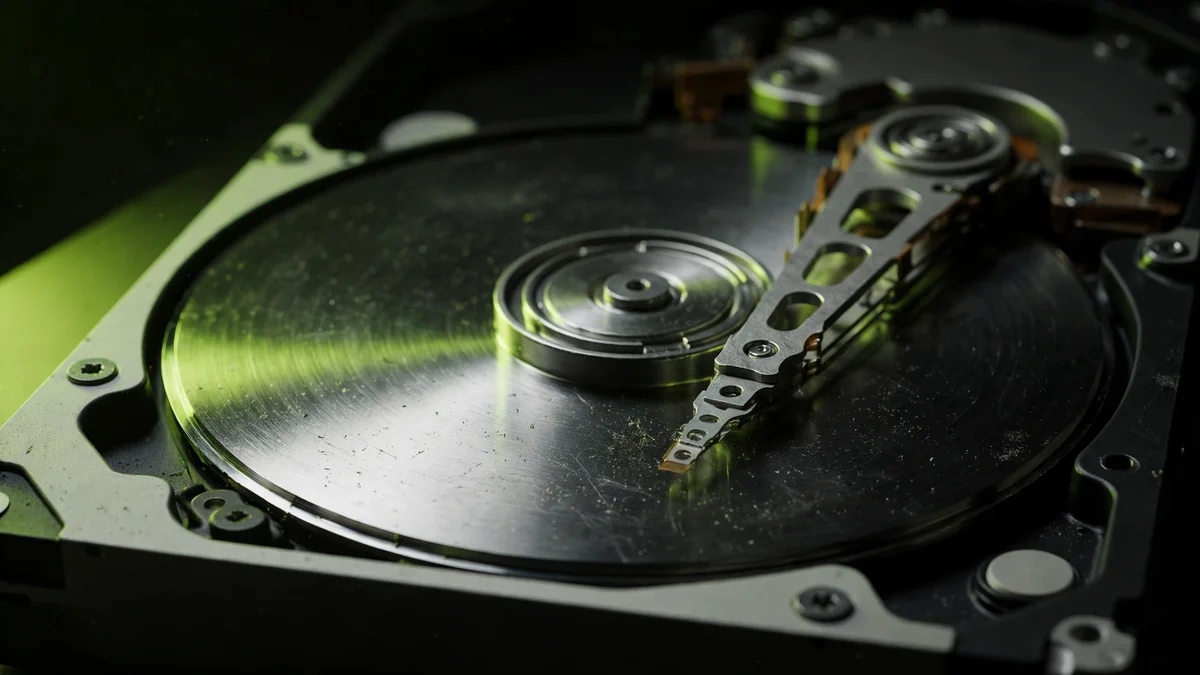
File systems explained in plain terms begins with a simple question: how does a computer know where anything is on a disk that holds billions of bytes? The central question is how an operating system turns a blank stretch of storage into folders, files, and free space it can find again in a fraction of a second, and the short answer is that a file system is the set of rules and records that organises the disk, giving every file a name, a place, and a way back.
Think of a file system as the catalogue and shelving plan of a library. The books are your files, the shelves are the blocks of storage on the disk, and the catalogue records which shelf holds each book, how long it is, and who may read it. When you open a document, the operating system consults that catalogue rather than searching every shelf, which is why a file appears almost instantly even on a drive holding millions of them.
Every device you own relies on one. Your laptop, phone, camera, and even the USB stick in a drawer each carry a file system, and the choice of which one shapes what the device can do, from the largest file it can hold to how well it survives a sudden power cut.
Key takeaways
- A file system is the set of rules and records an operating system uses to name files, place them on disk, and find them again.
- It divides storage into fixed-size blocks, maps names to locations, and tracks which blocks are free.
- Modern file systems journal their changes, so they can recover cleanly after a crash or power cut instead of losing data.
- Different systems suit different jobs: NTFS for Windows, APFS for Apple devices, ext4 for Linux, and exFAT for portable drives.
- It also controls permissions, file sizes, and names, which is why the same drive can behave differently on different computers.
What file systems are
A file system is the layer of software between the operating system and the raw storage device. The disk itself understands only numbered blocks, each typically 4,096 bytes, and it has no idea what a document or a folder is. The file system adds that meaning, grouping blocks into files, giving each file a name, and recording where its blocks live.
At its heart is a directory, a special record that maps human-readable names to the internal identity of each file. When you save a report, the file system writes the data into free blocks, creates a directory entry linking the name to those blocks, and notes the file’s size and the time it was changed. Opening the file later is the reverse: look up the name, follow the link, and read the blocks in order.
The file system also maintains a map of free space, so it knows which blocks are available without scanning the whole disk. When a file grows, it takes more free blocks; when one is deleted, its blocks return to the free pool for reuse.
Most modern file systems add journaling, a kind of diary in which changes are written down before they are applied. If the power fails mid-save, the system replays the journal on the next start and either completes the change or rolls it back. Our guide to hard disk drives explains the spinning storage these records often sit on, and why its moving parts make journaling especially valuable.
How file systems work
Formatting a drive is the act of installing a file system on it. The process divides the disk into regions: a boot area, a master directory or table, the data area itself, and space for the journal. Once that skeleton exists, the drive is ready to accept files, and the operating system can mount it, which means attaching it to the folder tree so programs can reach it by path.
When a program saves a file, the request passes through several layers. The program hands the data to the operating system, which asks the file system for free blocks, writes the data, and updates the directory entry and the journal. Reading reverses the flow: the directory gives the block list, the disk returns the blocks, and the operating system hands the assembled file back to the program.
Because reading from disk is slow compared with memory, the operating system caches frequently used data in RAM. Writes often go to this cache first and reach the disk a moment later, which is why safely ejecting a drive matters: it forces the cache to flush before you unplug it. Pulling a USB stick out mid-write can strand data in the cache and corrupt the file system.
Fragmentation is the slow decay that comes with constant change. As files grow, shrink, and are deleted, their blocks scatter across the disk, and reading a single file means hopping between distant locations. Some file systems fight this by grouping a file’s blocks together when it is written.
Comparing common file systems
No single file system suits every device, so operating systems each favour their own, and portable drives use a simpler one that all of them can read. The table below compares the four systems most people will meet, showing where each one belongs and what it cannot do.
The choice matters most at the edges: a drive formatted for one system may be unreadable on another, and a system with a 4-gigabyte file limit will refuse a single large video outright. Knowing the differences saves the familiar frustration of a drive that works on one computer and not the next.
| Aspect | NTFS | APFS | ext4 | exFAT |
|---|---|---|---|---|
| Main home | Windows computers | Apple Macs and phones | Linux computers and servers | USB sticks and memory cards |
| Journaling | Yes | Yes | Yes | No |
| Maximum file size | About 16 exabytes | About 8 exabytes | About 16 terabytes | About 16 exabytes |
| Works everywhere | Read-only on many systems | Mostly Apple only | Mostly Linux only | Yes, on nearly all systems |
| Best for | Windows system drives | Apple devices and encryption | Servers and Linux desktops | Moving files between computers |
Where file systems are used
The most visible use is the system drive of a computer. Windows installs onto NTFS, Apple devices use APFS, and most Linux distributions use ext4, and each operating system expects its own system to be present before it will even boot. Reinstalling an operating system usually means reformatting the drive that holds it.
Portable storage is the second home. USB sticks, memory cards, and external drives are usually formatted with exFAT, because it can be read and written by Windows, macOS, Linux, cameras, televisions, and game consoles alike. A photographer who moves cards between a camera and a laptop depends on that shared understanding every working day.
Servers use file systems tuned for scale and survival. A server holding thousands of user accounts needs permissions it can trust, journaling it can rely on, and the ability to grow a volume without taking it offline. Some server systems add snapshots, which freeze a copy of the file system at a moment in time.
Phones hide the file system almost entirely, yet depend on it completely. A phone’s storage holds apps, photographs, messages, and settings, and its file system encrypts that data and separates one app’s files from another’s. Our guide to solid-state drives explains the flash storage inside most phones, and why its speed changes how the file system lays out data.
Strengths and limits
The greatest strength of a modern file system is that it makes complexity invisible. Users think in documents and folders, never in blocks and journals, and the file system absorbs the translation between the two without being asked. Journaling adds resilience, permissions add safety, and decades of refinement have made the common systems reliable enough to be taken for granted.
The limits are real, though, and they usually appear when systems meet. A drive formatted for one operating system may be unreadable on another, file names allowed on one system may be illegal on another, and a file that fits on one drive may exceed another system’s size limit. These are not faults so much as the price of different designs made for different jobs.
File systems checklist
- Choose the file system that matches the device: NTFS for Windows, APFS for Apple, ext4 for Linux, exFAT for portable drives.
- Check the maximum file size before formatting a drive you will use for large videos or disk images.
- Keep at least a tenth of a drive free, so new files have room without fragmenting.
- Always eject USB drives and memory cards safely, so cached writes reach the disk before you unplug them.
- Back up important files regularly, because no file system can recover data from a failed drive.
- Let the disk checker run after a crash instead of interrupting it.
- Use exFAT rather than FAT32 for shared drives, to avoid the older system’s 4-gigabyte file limit.
- Keep file names simple and avoid characters other systems reject, such as colons.
- Encrypt sensitive drives, so a lost device does not hand its files to whoever finds it.
Frequently asked questions
What is a file system in simple terms?
A file system is the set of rules and records that lets an operating system store files on a disk and find them again. It gives every file a name, records where its data lives, and tracks which space is free.
Which file system should I use for a USB stick?
For most people, exFAT is the best choice, because Windows, macOS, Linux, cameras, and televisions can all read and write it, and it has no practical file-size limit. Use FAT32 only for older devices that cannot read exFAT.
What happens if I unplug a drive without ejecting it?
Data waiting in the write cache may never reach the disk, and the file system can be left half-updated, with a directory entry that points nowhere. Journaling usually repairs the damage, but files written moments before the unplug can still be lost.
Why does my drive show less space than the box promises?
Manufacturers count a gigabyte as a thousand million bytes, while computers count it as slightly more, so a 1-terabyte drive shows about 931 gigabytes. The file system also reserves space for its own records and the journal.
Can a file system be changed without losing data?
Changing a file system normally requires reformatting, which erases everything on the drive, so the files must be copied elsewhere first. Some tools can convert between certain systems without erasing data, but a backup is essential before trying.
What is journaling, and why does it matter?
Journaling means the file system writes each change into a diary before applying it, so a crash can be recovered by replaying the diary. Without it, a power cut during a save can leave the disk inconsistent, with lost files or a broken directory.
The bottom line
File systems explained in one line are this: the quiet bookkeeping that turns a blank disk into a place where files have names, homes, and a way back. They are easy to ignore precisely because they work so well, until the day a drive will not mount or a file will not fit.
Choose the system that fits the device, keep some space free, eject drives properly, and back up what matters.
This article is general information about how file systems work, not advice about choosing storage or recovering data for a particular device or situation.