Passkeys explained in plain terms means signing in with a cryptographic key stored on your device, instead of typing a password that you must remember. The central question is how a website can recognise you without a shared secret, and the short answer is that your device proves who you are with a private key that never leaves it, while the website keeps only the matching public key.
Most people know the frustrations of passwords. They are forgotten, reused across sites, stolen in data breaches, and tricked out of people by fake login pages. Passkeys were designed to remove that weak point, by replacing something you know with something your device holds and unlocks with your fingerprint, your face, or a device PIN.
Understanding passkeys matters because they are becoming the normal way to sign in. Major operating systems, browsers, and online services now support them, and many services offer them alongside passwords, or instead of passwords, for everyday accounts.
Key takeaways
- A passkey is a pair of cryptographic keys: a private key kept on your device and a public key held by the website.
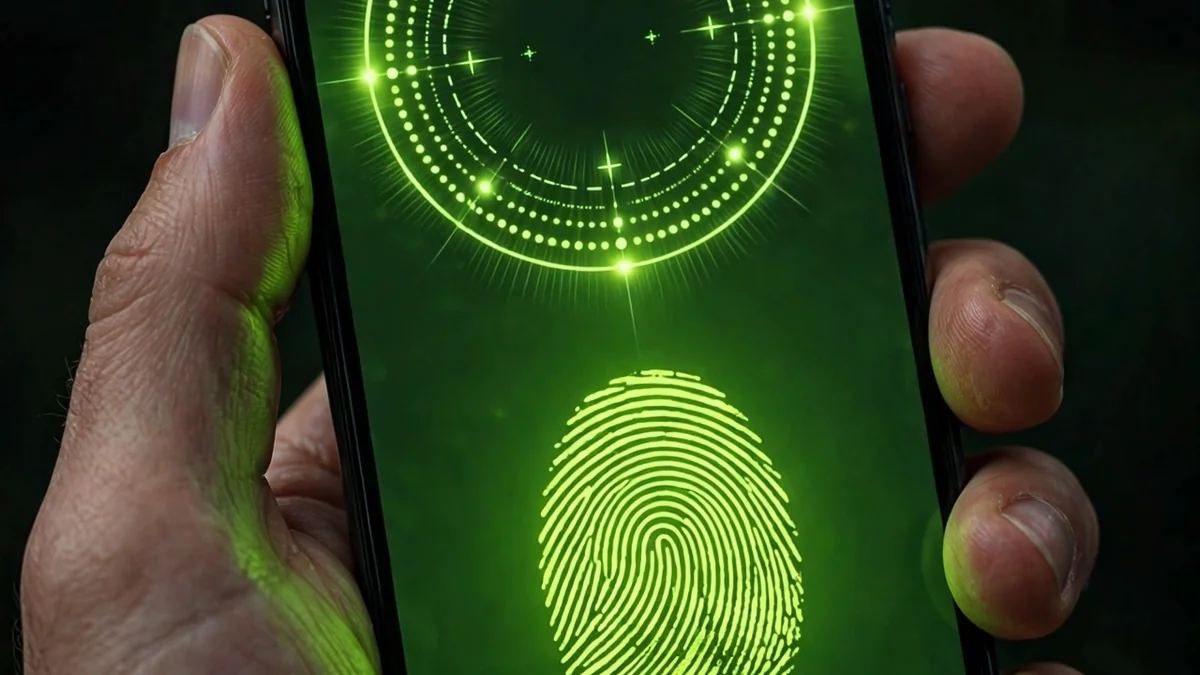
- You unlock a passkey with your fingerprint, your face, or your device PIN, rather than by typing a password.
- Passkeys resist phishing, because a passkey created for one website cannot be used on a fake copy of that site.
- There is nothing to remember or reuse, so passkeys remove the risks that come from weak and repeated passwords.
- If you lose your device, recovery depends on the service and on whether your passkeys are synced or backed up.
What passkeys are
A passkey is a modern sign-in credential built on public-key cryptography. When you create one, your device generates two mathematically linked keys. The private key stays on the device, protected by its own security hardware, and the public key is sent to the website, where it is stored against your account.
The public key alone is useless to an attacker. It can only check a proof made by the matching private key, and it cannot be used to create that proof. This is the opposite of a password, where the website must hold enough information to check what you typed, and where a stolen copy of that information can be abused.
Passkeys are based on open standards developed for web authentication, so the same idea works across different devices, browsers, and services. A passkey created on a phone can often be used to sign in on a laptop nearby, and a passkey stored in a password manager can move with you between devices.
The name can be confusing, because a passkey is not a password in a new format. It is a different kind of credential altogether, and it is never typed, seen, or copied by the person using it. You only see the result: a prompt to confirm with your fingerprint, your face, or your PIN.
How passkeys work
Creating a passkey starts with a normal sign-in. When a service offers the option, you choose to create a passkey, your device asks you to confirm with your usual unlock method, and the key pair is generated in a moment. The website stores the public key, and your device stores the private key.
Signing in later is simpler. You enter your username or choose your account, the website sends a one-off challenge to your device, and your device signs that challenge with the private key after you confirm. The website checks the signature against the public key it holds, and if the two match, you are signed in.
The challenge matters, because it is different every time. Even if someone intercepted a signed challenge, they could not reuse it to sign in again, since the next sign-in would use a fresh challenge. The private key itself is never sent over the network at any point.
Passkeys also check the address of the website before they act. A passkey created for a real banking site will not respond to a fake site that looks the same but has a different address. This built-in check is what makes passkeys so strong against phishing, where a fake page tries to collect passwords. Our guide to two-factor authentication explains an earlier layer of protection that asks for a second proof, while passkeys build that proof into the sign-in itself.
On many devices, passkeys are synced through the account tied to the operating system or through a password manager. Syncing means a passkey created on a phone can appear on a tablet or a computer signed in to the same account, although the exact behaviour depends on the platform and the settings you choose.
Comparing passkeys and passwords
Passwords and passkeys both answer the same question, which is whether the person signing in is the account holder, but they answer it in very different ways. A password is a secret shared between you and the website, while a passkey keeps the secret on your device and shares only a public key.
The table below sets out the main contrasts.
| Aspect | Passwords | Passkeys |
|---|---|---|
| What you remember | A secret for every account, often reused or written down | Nothing to remember, only your device unlock method |
| Phishing risk | High, because a fake page can collect what you type | Low, because a passkey only works on its real website |
| Data breaches | Stolen passwords can be reused to sign in elsewhere | A stolen public key cannot be used to sign in |
| Speed of sign-in | Typing, plus often a second step or a reset | One confirmation with a fingerprint, face, or PIN |
| If a device is lost | Passwords still work from any other device | Recovery depends on sync, backup, or the service recovery process |
Where passkeys are used
Passkeys are now offered by many large online services, including email providers, social networks, shopping sites, and banks. Some services let you create a passkey from your account security settings, while others offer one during sign-in or when you set up a new account.
They are also common on phones and computers themselves. Unlocking a phone with a fingerprint or a face is the same kind of local check that a passkey uses, and the operating system provides the secure storage where the private key is kept. This is why passkeys feel familiar even though the technology behind them is new.
Workplaces are adopting passkeys too, especially where staff handle sensitive systems or customer data. Removing passwords can reduce helpdesk calls about resets and cut the risk of an employee being tricked into giving away a login. Our guide to passwordless authentication describes the wider move away from passwords, of which passkeys are the most widely used example.
Not every service supports passkeys yet. Smaller websites, older systems, and some specialist tools still rely on passwords, so most people will use a mix of both for some time. In those cases, a strong unique password and a second factor remain the sensible choice.
Strengths and limits
The greatest strength of passkeys is phishing resistance. Because the private key never leaves the device and the passkey checks the website address before signing, the common trick of copying a login page stops working. This removes one of the largest causes of account takeover.
Convenience is the second strength. There is nothing to type, nothing to remember, and nothing to reset when you forget. Signing in becomes a single confirmation, which is faster than typing a password and waiting for a code, and it works the same way on a phone, a tablet, or a computer.
The main limit is recovery. If you lose your only device and your passkeys are not synced or backed up, you may need to go through the service recovery process, which can take time. This is why it helps to have passkeys on more than one device, or to keep a backup sign-in method ready.
There is also a limit in coverage. Passkeys depend on support from the device, the browser, and the website, and if any one of those is missing, you fall back to a password. Shared computers, public terminals, and older devices can make passkeys awkward, so they are best suited to personal devices you control.
Passkeys checklist
- Turn on passkeys in the security settings of services that offer them, starting with email and banking.
- Make sure your phone and computer use a strong screen lock, since that lock protects your passkeys.
- Keep your operating system and browser updated, so passkey support and security fixes stay current.
- Check whether your passkeys are synced, and know which account or manager holds the copies.
- Create a passkey on a second trusted device where the service allows it, as a backup.
- Keep a recovery option ready, such as a backup email, a trusted device, or printed recovery codes.
- Do not approve a passkey prompt you did not start, and check the website address before confirming.
- Remove passkeys from a device before you sell it, give it away, or send it for repair.
- Keep using strong unique passwords, with a second factor, on services that do not yet offer passkeys.
Frequently asked questions
What is a passkey in simple terms?
A passkey is a way to sign in without a password. Your device holds a private key, the website holds the matching public key, and you confirm with your fingerprint, your face, or your device PIN.
Are passkeys safer than passwords?
Yes, in most cases. Passkeys cannot be phished in the usual way, cannot be guessed, and cannot be reused across sites, because each passkey is tied to one website and the private key never leaves your device.
What happens if I lose my phone?
If your passkeys are synced through your account or a password manager, they should appear on your other devices. If they are not synced, you will need the service recovery process, so a backup device or recovery method is worth setting up in advance.
Do passkeys replace two-factor authentication?
Passkeys include a strong second factor in the sign-in itself, because they combine something you have, your device, with something you are or know, your fingerprint, face, or PIN. Some services still add extra checks for sensitive actions.
Can I use the same passkey on every website?
No. A separate passkey is created for each website, and a passkey for one site cannot be used on another. This is a safety feature, because a breach at one service cannot affect your other accounts.
Do I still need passwords at all?
For now, yes, for many people. Not every service supports passkeys, so you will still need passwords for some accounts. The aim is to use passkeys wherever they are offered and keep strong unique passwords elsewhere.
The bottom line
Passkeys explained in one line is this: your device proves who you are with a private key it never shares, and you confirm with a fingerprint, a face, or a PIN, so there is no password to steal, guess, or be tricked into giving away.
The trade is clear. You gain stronger protection and a faster sign-in, and you take on a new responsibility, which is keeping your devices, your sync settings, and your recovery options in order.
This article is general information about how passkeys work, not advice about securing a particular account or system.