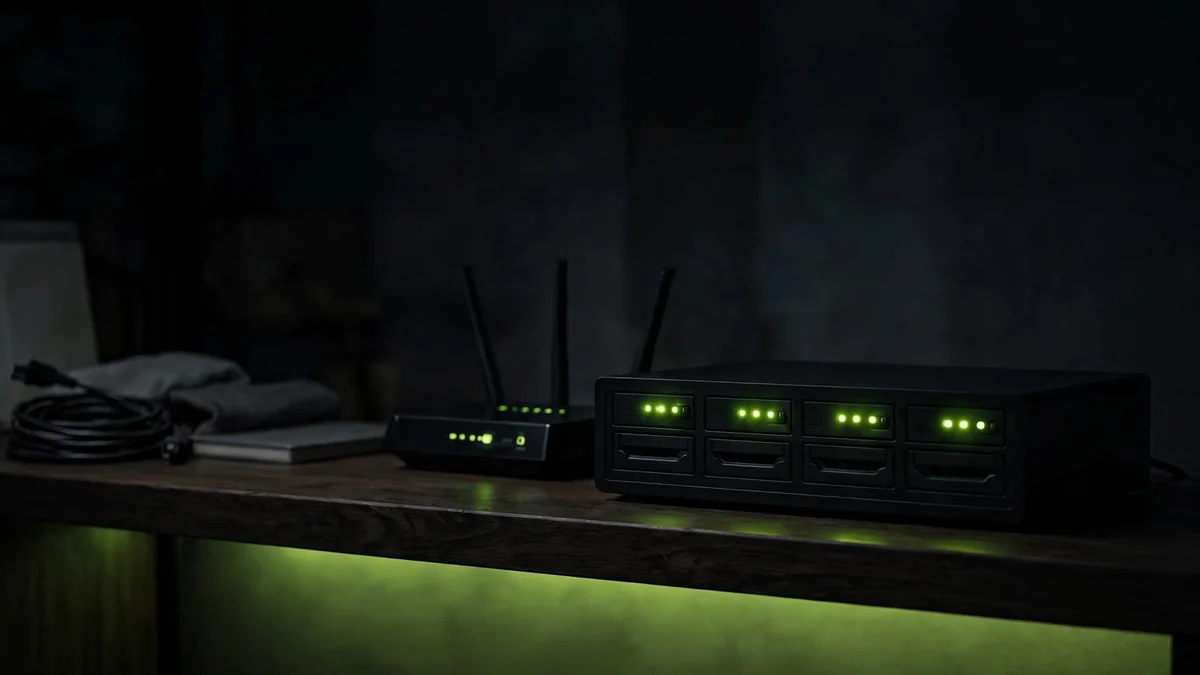
Network attached storage explained in plain terms means a small box of hard drives that plugs into your home or office network and lets every computer, phone, and television on that network share the same files. The central question is how a household or a small business can keep its photos, documents, and backups in one place without relying on a cloud service, and the short answer is that the box, usually called a NAS, stores the files itself and serves them to any device that connects to the local network.
Before network storage existed, sharing files meant copying them onto a memory stick or emailing them to yourself, and backing up a computer meant remembering to plug in an external drive. Files ended up scattered across laptops, phones, and loose drives, and when a computer failed, its files often went with it.
Network attached storage solves that problem by giving the whole network one shared home for files. A NAS sits quietly on a shelf or in a cupboard, connected to the router, and everyone with permission can reach the same folders from any device in the building.
Key takeaways
- Network attached storage is a box of drives connected to a local network that shares files with every device on it.
- It keeps files in your own home or office, so you control them without paying a monthly cloud subscription.
- A NAS can back up computers automatically, stream media to televisions, and share folders between people.
- Most NAS boxes hold two or more drives, so one drive can fail without any files being lost.
- The trade-off is that you buy and maintain the hardware yourself, and the files are only as safe as your backups.
What network attached storage is
Network attached storage, usually shortened to NAS, is a dedicated storage device that connects to a network rather than to a single computer. It contains one or more hard drives or solid-state drives, a small processor, and software that manages files, users, and permissions. Any device on the same network can open, save, and edit files stored on it, as if the drives were inside the device itself.
The idea is best understood as a private file server made simple. A full server needs specialist setup and maintenance, but a NAS is designed to be switched on, configured through a web page, and then largely left alone. The software inside handles sharing, backups, and security, so no server expertise is needed to run it.
Well-known examples include two-bay boxes for homes, which hold two drives and serve a family, and larger rack-mounted units for offices, which can hold a dozen drives and serve dozens of people. In every case the principle is the same: the drives live in the box, and the network makes them available to everyone. Our guide to data centres explains the large-scale version of the same idea, where thousands of drives serve users across the internet.
How network attached storage works
The starting point is the connection. A NAS plugs into the router with a network cable, which gives it an address on the local network. Computers, phones, and televisions then find it by that address, and once a user signs in, the shared folders appear just like folders on the device itself.
Inside the box, the drives work together. In a common arrangement, two drives hold identical copies of everything, so if one drive fails, the other still has every file and the box can keep working while the broken drive is replaced. Larger boxes can spread files across several drives with spare capacity, so more than one drive can fail without data loss.
Access is controlled by user accounts and permissions. A family might give everyone access to a shared photo folder, while each person keeps a private folder of their own. An office might give the accounts team its own folder, the design team another, and managers access to both, with every change recorded so nothing is altered unseen.
Many NAS boxes also run extra services beyond simple file sharing. They can back up every computer on the network on a schedule, stream films and music to a television, host a photo library that can be browsed from a phone, and even synchronise folders with a cloud service for an off-site copy. The box itself usually runs quietly and uses little power, so it can stay on all day and night.
Remote access is possible too. With the right settings, a user away from home can reach the NAS over the internet through a secure connection, opening files on a laptop in another city as if they were sitting at their desk. Our guide to cloud storage explains the rented alternative, where the same files live on a provider’s servers instead of a box you own.
Comparing NAS with cloud storage and external drives
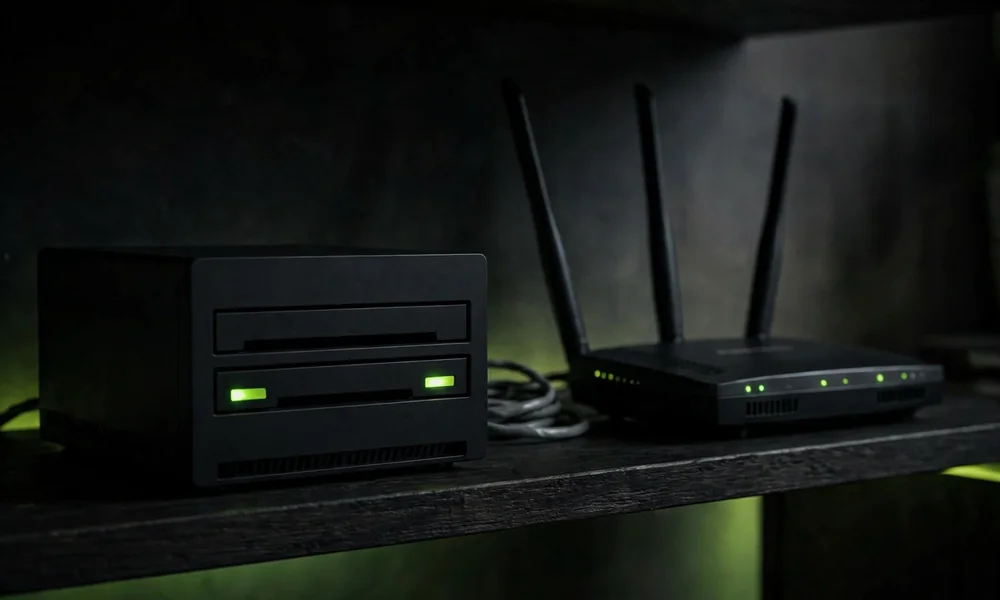
The three storage options differ mainly in where the files live, who looks after them, and what happens when something goes wrong. A NAS keeps files at home under your control, cloud storage keeps them on a provider’s servers, and an external drive keeps them on a device attached to one computer.
The table below sets out the main contrasts.
| Aspect | Network attached storage | Cloud storage | External drive |
|---|---|---|---|
| Where files live | On drives in your own home or office | On a provider’s servers | On a drive attached to one computer |
| Monthly cost | None after buying the box and drives | A subscription that grows with use | None after buying the drive |
| Sharing | Easy for everyone on the network | Easy from anywhere with internet | Hard, the drive must be passed around |
| Drive failure | Survives if drives are mirrored | Handled by the provider | Files are usually lost |
| Best for | Shared files and backups at home or in a small office | Access from anywhere and off-site safety | Simple one-computer backups |
Where network attached storage is used
Families use a NAS as a shared photo and film library. Photos from every phone can be backed up to one place automatically, films can be streamed to the television without a subscription, and important documents can be kept in a folder that every member of the household can reach. Our guide to solid-state drives explains the faster storage option many newer NAS boxes use alongside traditional hard drives.
Small businesses use a NAS for shared working files and backups. A design studio might keep its project files on the box so every designer opens the same version, while the box backs itself up overnight. An accountancy firm might store client records on it, with strict permissions so each member of staff sees only the files their work requires.
Creative professionals use a NAS as a working archive. A photographer can store years of raw images in one place and edit them over the network, and a video editor can keep footage on the box and pull it into editing software as needed. The larger the collection grows, the more sense it makes to keep it on dedicated storage rather than scattered across memory cards and portable drives. Our guide to hard disk drives explains the technology inside most NAS boxes, and why it remains the cheapest way to store large amounts of data.
Strengths and limits
The greatest strength of network attached storage is control. The files are yours, on hardware you own, with no monthly subscription and no provider deciding what you may store or how much it costs. Access on the local network is fast, because files travel over your own cables rather than the internet, and a well-set-up box can survive a drive failure without losing anything.
The main limit is that you are responsible for the hardware. Drives wear out, the box itself can fail, and a flood or theft that takes the box takes the files too, unless a copy exists somewhere else. Setting up a NAS also takes more effort than signing up for cloud storage, and fixing problems requires at least a little patience with network settings.
Cost is a mixed picture. A NAS costs more upfront than a single external drive, because you buy the box and the drives together, but it can work out cheaper than years of cloud subscriptions, especially for large collections of photos and video. The sensible approach is to treat the NAS as the main copy and keep a second copy elsewhere, so one disaster cannot destroy everything.
Network attached storage checklist
- Choose a box with at least two drive bays, so your files can survive one drive failing.
- Buy drives designed for always-on use, and fit them before you copy any files across.
- Set up user accounts and permissions, so each person sees only the folders they need.
- Turn on automatic backups for every computer that holds important files.
- Keep a second copy of your most important files somewhere else, away from the building.
- Enable automatic updates, so the box gets security fixes without you remembering to check.
- Label your shared folders clearly, so family or colleagues can find files without asking.
- Test restoring a file from a backup before you need to do it for real.
- Check the box’s lights and health reports now and then, so a failing drive is spotted early.
Frequently asked questions
What is network attached storage in simple terms?
Network attached storage is a box of drives that plugs into your home or office network and shares files with every device on it. It acts like a private file server, but it is designed to be simple to set up and run.
What is the difference between NAS and cloud storage?
A NAS stores your files on hardware you own in your own building, with no monthly fee. Cloud storage stores them on a provider’s servers, which you reach over the internet and pay for by subscription.
What is the difference between NAS and an external hard drive?
An external drive attaches to one computer and can only be used by that computer. A NAS attaches to the network, so every device on the network can use it at the same time, and it can protect files against a single drive failing.
Do I need a NAS at home?
Not everyone does. It makes most sense when a household has lots of photos and video, several computers to back up, or files that more than one person needs to reach, and when paying a monthly cloud subscription for the same storage would cost more over time.
Can a NAS work without the internet?
Yes, on the local network it works without any internet connection at all. The internet is only needed for remote access from outside the building, for software updates, and for synchronising files with a cloud service.
What happens if a drive in my NAS fails?
If the drives are set up to mirror each other, the box keeps working from the surviving drive and warns you to replace the failed one. You swap in a new drive, the box rebuilds the copy, and no files are lost, provided you replace it before another drive fails.
The bottom line
Network attached storage explained in one line is this: a shared box of drives on your own network that keeps a household’s or a small office’s files in one safe, accessible place.
The trade is clear. You gain control, speed, and no monthly bill, and you take on the job of looking after the hardware and keeping a second copy elsewhere, and for many homes and small businesses that is a fair exchange.
This article is general information about how network attached storage works, not advice about choosing storage for a particular home or business.