WebAuthn explained in plain terms means a web standard that lets you sign in with your device, using a fingerprint, your face, or a security key, instead of typing a password. The central question is how a website can recognise you without a shared secret, and the short answer is that your device creates a key pair for that site, keeps the private key locked away, and proves who you are by signing a challenge only your key can sign.
Passwords have been the weak point of online security for decades. They are forgotten, reused across sites, stolen in data breaches, and tricked out of people by fake login pages. WebAuthn was designed to remove that weak point, by replacing something you know with something your device holds and unlocks with your body or a physical key.
Understanding WebAuthn matters because it is the standard behind the passwordless sign-in now appearing on major websites. Passkeys, security keys, and fingerprint sign-in all rely on it, and the more services adopt it, the less people will need passwords at all. Knowing how it works helps you use it with confidence.
Key takeaways
- WebAuthn is a web standard for passwordless sign-in, built on public-key cryptography.
- Your device creates a key pair for each website: the private key stays on the device, and the public key is held by the site.
- You confirm a sign-in with your fingerprint, your face, a device PIN, or a security key.
- WebAuthn resists phishing, because a credential created for one website cannot be used on a fake copy of that site.
- All major browsers and operating systems now support WebAuthn, on phones, tablets, and computers.
What WebAuthn is
WebAuthn, short for Web Authentication, is a standard published by the World Wide Web Consortium, the body that sets the rules for how the web works. It defines how a website asks a browser to create or use a credential, and how the browser talks to the device that holds it, whether a phone, a laptop, or a separate security key.
The standard is the technical foundation of passkeys, which are the user-facing form most people meet. When a website offers to let you sign in with a passkey, it is using WebAuthn underneath, and the same standard is at work when you plug in a security key. WebAuthn itself is not a product or an app, it is the shared language that lets websites, browsers, and devices agree on how passwordless sign-in works.
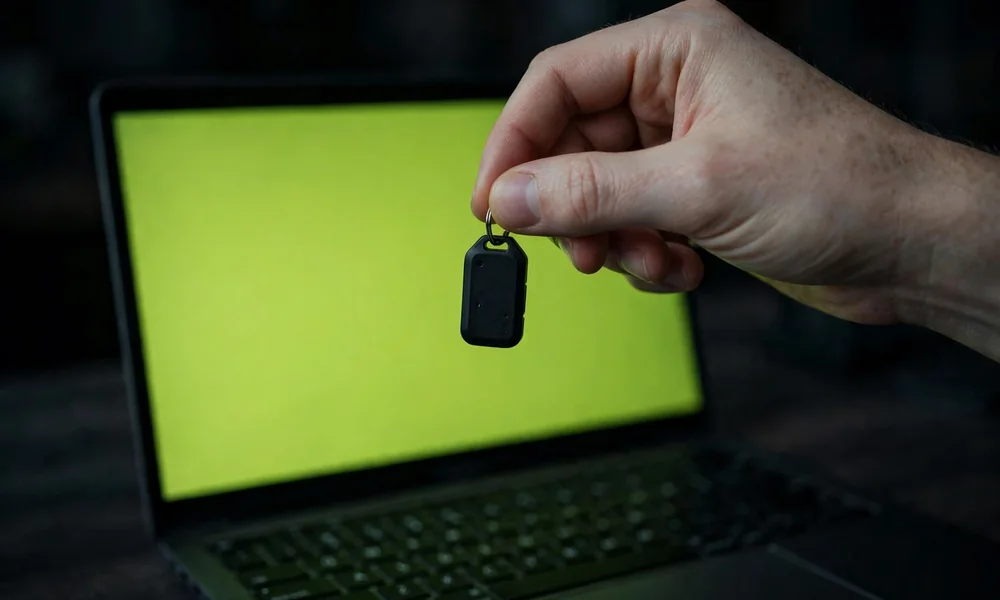
WebAuthn works with two kinds of authenticator. A platform authenticator is built into the device, such as the fingerprint reader or face recognition on a phone or laptop, and the keys it creates are stored in the device secure hardware. A roaming authenticator is a separate device, such as a USB security key, that you plug in or tap when you need to sign in. The standard was developed by the FIDO Alliance, an industry group formed to replace passwords, and it became a formal web standard in 2019.
How WebAuthn works
WebAuthn works through a process called registration, which happens the first time you set up passwordless sign-in on a website. The website sends a challenge, a random value that is different every time, and your browser passes it to the authenticator. You confirm with your fingerprint, your face, your PIN, or by touching your security key, and the authenticator creates a new key pair for that site. The private key stays on the device, and the public key is sent back to the website, where it is stored against your account.
Signing in later follows a similar pattern. You enter your username or choose your account, the website sends a fresh challenge, and your device signs that challenge with the private key after you confirm. The website checks the signature against the public key it holds, and if they match, you are signed in. The private key is never sent over the network, and the challenge is different every time, so an intercepted signature cannot be reused.
The website address is part of the protection. When your device creates a credential, it records the exact address of the real website, and it checks that address again before signing in. A fake site that looks the same but has a different address will not get a signature, because the device refuses to use the credential there. This is what makes WebAuthn so strong against phishing, where a fake page tries to collect passwords from people who cannot tell it apart from the real one.
WebAuthn credentials can also carry extra information, such as whether the user was verified with a fingerprint or a PIN, and whether the authenticator is built into the device or a separate key. Websites can use this to decide how much trust to place in a sign-in, for example by asking for a security key before a password change, while accepting a fingerprint for an everyday sign-in. Our guide to two-factor authentication explains an earlier layer of protection that asks for a second proof, while WebAuthn builds that proof into the sign-in itself.
Comparing WebAuthn and passwords
Passwords and WebAuthn both answer the same question, which is whether the person signing in is the account holder, but they answer it in very different ways. A password is a secret shared between you and the website, while WebAuthn keeps the secret on your device and shares only a public key that cannot be used to sign in on its own.
The table below sets out the main contrasts.
| Aspect | Passwords | WebAuthn |
|---|---|---|
| What you remember | A secret for every account, often reused or written down | Nothing to remember, only your device unlock method |
| Phishing risk | High, because a fake page can collect what you type | Low, because a credential only works on its real website |
| Data breaches | Stolen passwords can be reused to sign in elsewhere | A stolen public key cannot be used to sign in |
| Speed of sign-in | Typing, plus often a second step or a reset | One confirmation with a fingerprint, face, PIN, or key |
| If a device is lost | Passwords still work from any other device | Recovery depends on sync, backup, or the service recovery process |
Where WebAuthn is used
WebAuthn is now offered by many large online services, including email providers, social networks, shopping sites, and banks. Some services let you set it up from your account security settings, while others offer it during sign-in, usually under the name passkeys. Because it is a standard, the same sign-in flow works across different browsers and devices, rather than being tied to one company.
It is also common on phones and computers themselves. Unlocking a phone with a fingerprint or a face is the same kind of local check that WebAuthn uses, and the operating system provides the secure storage where the private key is kept. This is why WebAuthn sign-in feels familiar even though the technology behind it is new.
Workplaces are adopting WebAuthn too, especially where staff handle sensitive systems or customer data. Removing passwords can reduce helpdesk calls about resets and cut the risk of an employee being tricked into giving away a login. Security keys are often issued to staff who manage servers or administrator accounts, where a stolen password would do the most damage. Our guide to passwordless authentication describes the wider move away from passwords, of which WebAuthn is the standard that makes it possible.
Strengths and limits
The greatest strength of WebAuthn is phishing resistance. Because the private key never leaves the device and the credential checks the website address before signing, the common trick of copying a login page stops working. This removes one of the largest causes of account takeover, and it is why security teams recommend WebAuthn for the accounts that matter most.
Convenience is the second strength. There is nothing to type, nothing to remember, and nothing to reset when you forget. Signing in becomes a single confirmation, which is faster than typing a password and waiting for a code, and it works the same way on a phone, a tablet, or a computer.
The main limit is recovery. If you lose your only device and your credentials are not synced or backed up, you may need to go through the service recovery process, which can take time. This is why it helps to register more than one authenticator, for example a passkey on your phone and a security key kept somewhere safe, so that losing one does not lock you out. Our guide to OAuth explains a different standard that lets you sign in with an account you already have.
WebAuthn checklist
- Turn on passkeys or security keys in the security settings of services that offer them, starting with email and banking.
- Make sure your phone and computer use a strong screen lock, since that lock protects your WebAuthn credentials.
- Keep your operating system and browser updated, so WebAuthn support and security fixes stay current.
- Check whether your credentials are synced, and know which account or manager holds the copies.
- Register a second authenticator where allowed, such as a security key kept somewhere safe.
- Keep a recovery option ready, such as a backup email, a trusted device, or printed recovery codes.
- Do not approve a sign-in prompt you did not start, and check the website address before confirming.
- Remove credentials from a device before you sell it, give it away, or send it for repair.
- Keep using strong unique passwords, with a second factor, on services that do not yet offer WebAuthn.
Frequently asked questions
What is WebAuthn in simple terms?
WebAuthn is a web standard that lets you sign in without a password. Your device holds a private key, the website holds the matching public key, and you confirm with your fingerprint, your face, a device PIN, or a security key.
Is WebAuthn the same as a passkey?
Not quite. WebAuthn is the standard that makes passkeys work, while a passkey is the credential itself, the key pair stored on your device. Passkeys are the most common way people meet WebAuthn.
Are WebAuthn sign-ins safer than passwords?
Yes, in most cases. WebAuthn credentials cannot be phished in the usual way, cannot be guessed, and cannot be reused across sites, because each credential is tied to one website and the private key never leaves your device.
What happens if I lose my phone?
If your credentials are synced through your account or a password manager, they should appear on your other devices. If they are not synced, you will need the service recovery process or a second authenticator you registered in advance.
Do I need a security key to use WebAuthn?
No. Most people use the authenticator built into their phone or laptop, such as a fingerprint reader or face recognition. A security key is an optional extra, useful for high-value accounts or for people who want a separate physical device.
Which browsers support WebAuthn?
All major browsers support it, including Chrome, Safari, Firefox, and Edge, on phones, tablets, and computers. Support is built into the operating systems too, so no extra software is needed.
The bottom line
WebAuthn explained in one line is this: your device proves who you are with a private key it never shares, and you confirm with a fingerprint, a face, a PIN, or a security key, so there is no password to steal, guess, or be tricked into giving away.
The trade is clear. You gain stronger protection and a faster sign-in, and you take on a new responsibility: keeping your devices, sync settings, and recovery options in order.
This article is general information about how WebAuthn works, not advice about securing a particular account or system.