PCIe explained in plain terms means understanding the high-speed connection that links the processor to the fastest parts of a computer. The central question is how a graphics card can move gigabytes of data every second while a keyboard needs almost none, and the short answer is that PCIe gives each device its own dedicated lanes, small serial paths that carry data at enormous speed, rather than making everything share one slow road.
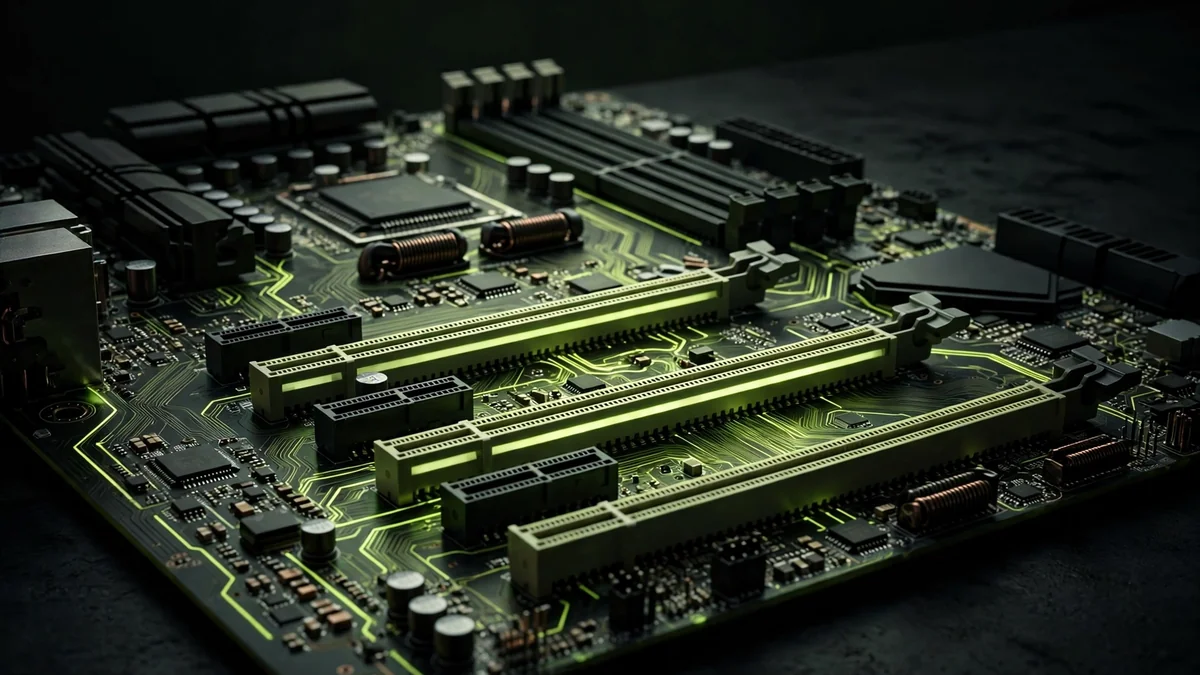
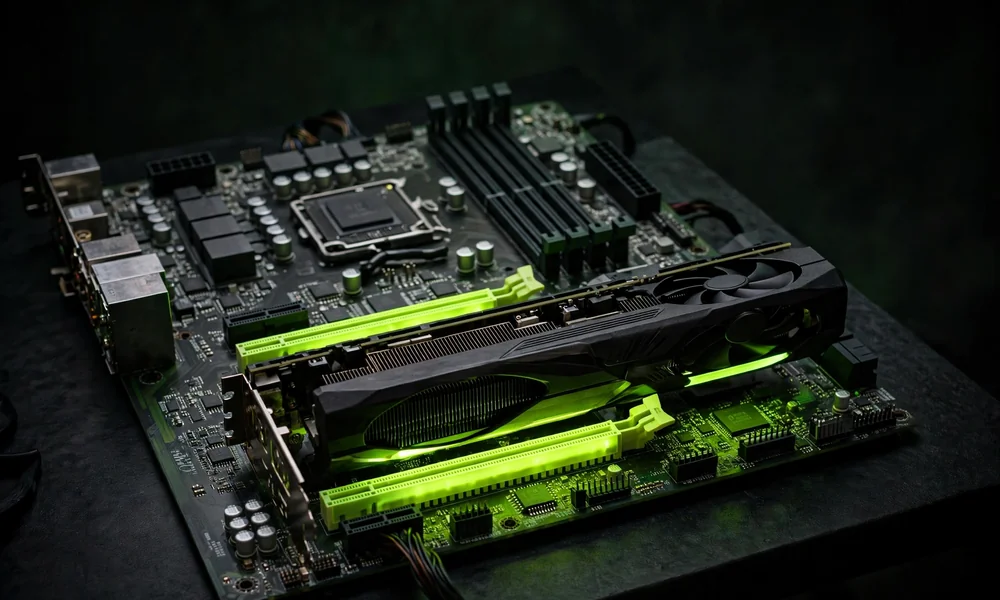
Most people never see PCIe, because it lives inside the case. It is the long slot on the motherboard where the graphics card sits, and the small slot where a fast solid-state drive plugs in. The computer works the same whether the user knows about it or not, until the day an upgrade goes wrong because the wrong slot was used.
That slot has quietly become the backbone of modern computing. Almost every fast component, from the graphics card to the network adapter, speaks PCIe, and each new generation doubles its speed. This article explains what PCIe is, how its lanes work, and why it matters.
Key takeaways
- PCIe is the high-speed connection between the processor and fast devices.
- Data travels on lanes, each a pair of wires carrying one stream at a time.
- More lanes mean more bandwidth, so graphics cards use sixteen and small devices use one.
- Each generation roughly doubles the speed of the one before it.
- Newer devices work in older slots, but only at the older slot’s speed.
What PCIe is
PCIe, short for Peripheral Component Interconnect Express, is the standard that connects expansion cards and built-in devices to the processor and memory of a computer. It replaced the older PCI standard in the early 2000s, and it also replaced the dedicated graphics port that came before it, because a single fast, general-purpose connection turned out to be better than a collection of special ones.
The key idea is serial communication. The old PCI bus carried many bits at once over a wide set of wires, shared by every device, and the shared road became a bottleneck as devices got faster. PCIe instead gives each device its own narrow, private road, and runs that road at a very high speed, so the total throughput is far greater even though each road is thin.
A lane is the basic unit: two pairs of wires, one pair sending and one receiving, so data flows both ways at once. A device can use one, four, eight, or sixteen lanes, written as x1, x4, x8, and x16, and the number of lanes decides how much data it can move. The physical slot matches the lane count, so a large graphics card physically fits only a large slot. Our guide to the motherboard explains the board that carries these slots, and our guide to CPU architecture explains the processor at the other end of the connection.
How PCIe works
When a device needs to send data, it breaks the data into packets and sends them down its lanes, one bit at a time, at a speed measured in billions of transfers per second. The packets travel to a switch or directly to the processor, which reads them and sends a reply down the same lanes in the opposite direction. Because each device has its own lanes, two devices can talk at full speed at the same time without interfering with each other.
Generations are the other half of the story. PCIe 1.0, from 2003, moved about 250 megabytes per second per lane. PCIe 3.0 doubled that twice over to about one gigabyte per lane, PCIe 4.0 doubled it again, and PCIe 5.0 doubled it once more, to nearly four gigabytes per lane. A sixteen-lane graphics card on PCIe 5.0 can therefore move around 64 gigabytes per second in each direction, a figure that would have been unimaginable when the standard was born.
The connection is also negotiated automatically. When a device is plugged in, it tells the system how many lanes it can use and which generation it supports, and the system agrees on the fastest combination both sides can manage. A new card in an old motherboard still works, but only at the older speed, and a card in a slot with fewer lanes than it wants still works, but only with the bandwidth those lanes provide.
Not every PCIe device sits in a visible slot. Fast solid-state drives use a small connector called M.2, which carries four PCIe lanes directly to the processor, and many laptops route their wireless adapter, fingerprint reader, and card reader through PCIe lanes buried on the board. The standard is everywhere, even when the slot is not.
Power travels through the slot too, up to 75 watts for a large card, with more powerful graphics cards drawing extra power through separate cables from the power supply. This is why a graphics card upgrade sometimes also needs a bigger power supply, even though the card fits the slot perfectly.
Comparing PCIe with the older PCI bus
PCIe and the old PCI bus both connect devices to a computer, but they are built on opposite ideas. One shares a wide, slow road between every device, while the other gives each device its own fast, narrow road.
The table below sets out the main contrasts between the two.
| Aspect | PCIe | Older PCI bus |
|---|---|---|
| Data path | Private serial lanes per device | One shared parallel bus |
| Speed per device | Gigabytes per second | About 133 megabytes per second |
| Two-way traffic | Both directions at once | One direction at a time |
| Scaling | Add lanes or a new generation | Fixed by the bus design |
| Used today | Every fast device | Almost nothing new |
The practical result is that PCIe replaced PCI completely for anything fast, and the old bus survives only in the occasional legacy card. The serial design turned out to scale far better than the parallel one, because speed could keep rising without the wiring becoming unmanageable.
Where PCIe is used
Graphics cards are the most visible users. A modern graphics card uses sixteen lanes and needs every bit of that bandwidth to move textures, geometry, and frames between the processor, the card’s memory, and the display. Gamers and video editors notice the difference immediately when a card is accidentally fitted in a slower slot.
Fast storage is the second great use. A solid-state drive on four PCIe lanes can read data many times faster than an older drive on a SATA cable, which is why a new computer feels so much quicker to start and to load programs. The difference is not the flash memory alone; it is the connection that finally lets the memory run at full speed.
Network adapters use PCIe to move data between the computer and the network. A ten-gigabit network card needs more bandwidth than the old bus could ever provide, and PCIe supplies it easily, which is why servers can serve thousands of connections from a single machine.
Specialist cards fill the remaining slots. Video capture cards, sound cards, extra storage controllers, and hardware for machine learning all plug into PCIe, and each one gets the lanes it needs without slowing the others down.
External devices use PCIe too, through Thunderbolt and similar connections, which carry PCIe lanes out of the computer in a cable. An external graphics card or a fast external drive can then run almost as quickly as an internal one, which is why a laptop can gain desktop performance by plugging in a box.
Strengths and limits
The greatest strength of PCIe is that it scales. More lanes add bandwidth, new generations double the speed, and the same connector design has lasted for two decades of enormous growth. A standard that can carry both a tiny wireless card and the largest graphics card is a rare achievement.
It is also a strength that PCIe is point to point. Devices never wait for a shared bus to free up, so a busy graphics card does not slow down the storage drive, and the system stays responsive under load that would have choked the old design.
The limits are real, though. Lanes are a finite resource, and a processor provides only so many, so a motherboard must divide them between slots, drives, and built-in devices. Plugging a second graphics card in can halve the lanes available to the first, and a fast drive can steal lanes from a slot the user planned to use. The physical size of the slot also matters: a card that needs sixteen lanes cannot fit a slot wired for four.
PCIe checklist
- Fit a graphics card in the longest slot, closest to the processor, for full speed.
- Check how many lanes a slot is wired for, not just how long it looks.
- Match the card’s generation to the motherboard’s, or accept the older speed.
- Use an M.2 slot with four lanes for a fast solid-state drive.
- Count total lanes before adding a second card or drive.
- Check the power supply can feed a large card’s extra connectors.
- Update the motherboard firmware if a new card is not recognised.
- Remember that a card in a short slot still works, just more slowly.
- Keep the case cool, since fast cards produce real heat.
Frequently asked questions
What is PCIe in simple terms?
PCIe is the high-speed connection inside a computer that links the processor to fast devices such as graphics cards and solid-state drives, giving each device its own lanes to carry data.
What is a PCIe lane?
A lane is a pair of wire paths, one sending and one receiving, that carries a stream of data. Devices use one, four, eight, or sixteen lanes, and more lanes mean more bandwidth.
Does PCIe generation matter?
Yes. Each generation roughly doubles the speed per lane, so a card on PCIe 5.0 can move twice as much data as the same card on PCIe 4.0. A newer card in an older slot still works, but only at the older speed.
Can I put a graphics card in any PCIe slot?
Physically, a large card fits only a large slot, and for full speed it should go in the top slot nearest the processor. A smaller slot can still run it, but with fewer lanes and less bandwidth.
What is an M.2 slot?
An M.2 slot is a small connector that carries four PCIe lanes to a compact solid-state drive or wireless card. It is how fast storage fits inside thin laptops and small computers.
Is PCIe backwards compatible?
Yes. Newer cards work in older slots and older cards work in newer slots, with both sides agreeing on the fastest speed they share. The connection always works; only the speed changes.
The bottom line
PCIe explained in one line is this: a fast, private set of lanes that connects the processor to every high-speed device in a computer, from graphics cards to storage drives.
It replaced a shared bus that could not keep up, and it has scaled through five generations without changing its basic idea. For anyone upgrading a computer, knowing which slot a card needs, and how many lanes it gets, is the difference between full speed and a silent bottleneck.
This article is general information about how PCIe works, not advice about choosing or installing hardware for a particular computer.