UEFI explained in plain terms means the modern firmware that wakes a computer up, checks its hardware, and hands control to the operating system. The central question is how a machine with no software running yet can find its operating system and start it, and the answer is that a small program stored on a chip on the motherboard runs first, and UEFI is the standard that program follows.
UEFI stands for Unified Extensible Firmware Interface. It replaced BIOS, the older system that had started computers since the 1980s, and it is now the standard on almost every new PC, laptop, and server.
It starts computers faster, handles larger disks, and adds security checks that BIOS could not. This article explains what UEFI is, how it works, and how it compares with the system it replaced.
Key takeaways
- UEFI is the firmware that starts a computer and loads the operating system.
- It replaced BIOS, the older system that had served since the 1980s.
- It supports large disks, fast booting, and a graphical setup screen.
- Secure Boot checks that only signed software may start the machine.
- It works with the GPT partition scheme, which BIOS could not use.
What UEFI is
UEFI is a specification for the firmware that runs when a computer is switched on. Firmware is software stored on a chip on the motherboard, and it runs before anything else: before the operating system, before any program, and before the computer has even decided which disk to boot from.
The firmware’s job is to wake up the hardware, check that the memory, processor, and storage are working, find a bootable device, and load the operating system’s bootloader. Once the bootloader takes over, the firmware steps aside, although it stays available to the operating system for certain low-level services.
UEFI is a standard, not a single product. Motherboard makers write their own firmware that follows the UEFI specification, which is why the setup screen looks different on different computers while behaving in the same way underneath. Our guide to firmware explains the wider idea of software stored on hardware, and our guide to Secure Boot explains the security feature that UEFI made possible.
How UEFI works
The process starts the moment power reaches the motherboard. The processor runs the firmware from its chip, and the firmware begins by initialising the hardware: it checks the memory, sets up the processor, and finds the disks, keyboards, and displays attached to the machine.
Next the firmware reads the boot configuration, a small table stored in non-volatile memory that lists the devices and operating systems the computer may boot from, in order of preference. It looks at each entry in turn until it finds a bootloader, a small program that knows how to start the operating system.
The bootloader lives on a special EFI system partition, a small formatted area on the disk that holds the boot files. UEFI reads the bootloader from that partition and runs it, and the bootloader then loads the operating system’s kernel into memory and hands control to it. From that moment, the operating system is in charge.
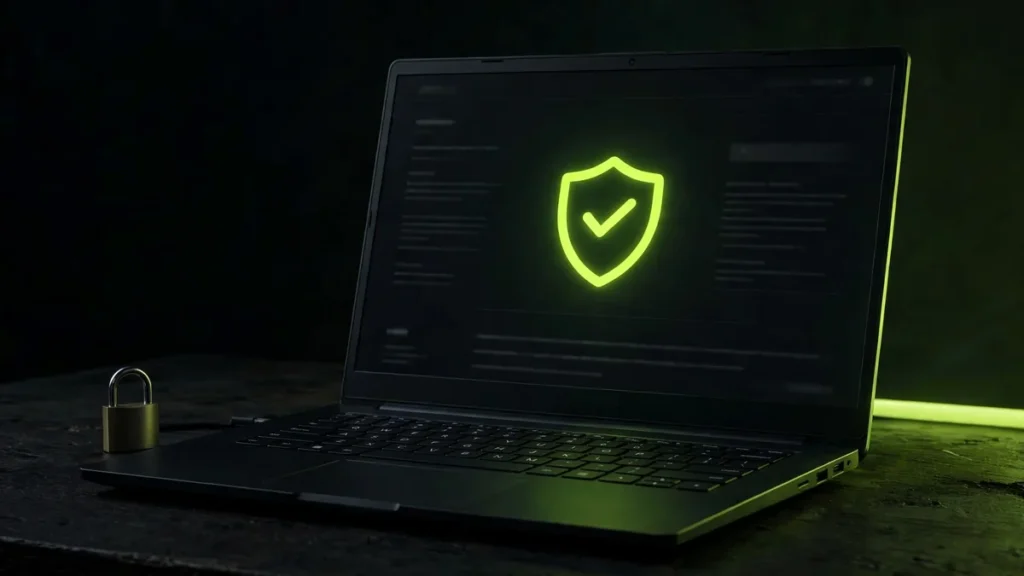
Secure Boot adds a check to this chain. Before running a bootloader, the firmware checks that it carries a valid digital signature from a trusted authority. If the signature is missing or wrong, the firmware refuses to run it. That stops a common class of attack in which malicious code replaces the bootloader and runs before the operating system can defend itself.
Comparing UEFI with BIOS
UEFI and BIOS do the same job, but UEFI does it with a modern design. BIOS was built for the computers of the 1980s, with limits that became painful as disks grew and security became essential.
The table below sets out the main contrasts.
| Aspect | UEFI | BIOS | Secure Boot |
|---|---|---|---|
| Disk support | GPT, disks over 2 TB | MBR, disks up to 2 TB | Needs UEFI to work |
| Boot speed | Fast, parallel start-up | Slow, one step at a time | Adds a small check |
| Setup screen | Graphical, mouse support | Text only, keyboard only | Configured in setup |
| Security | Secure Boot, signed code | None built in | Blocks unsigned bootloaders |
| Modern use | Almost all new computers | Old machines only | Standard on new PCs |
The practical result is that UEFI wins on every count that matters today, BIOS survives only on old machines, and Secure Boot is the security feature that makes UEFI worth having even for users who never open the setup screen.
Where UEFI is used
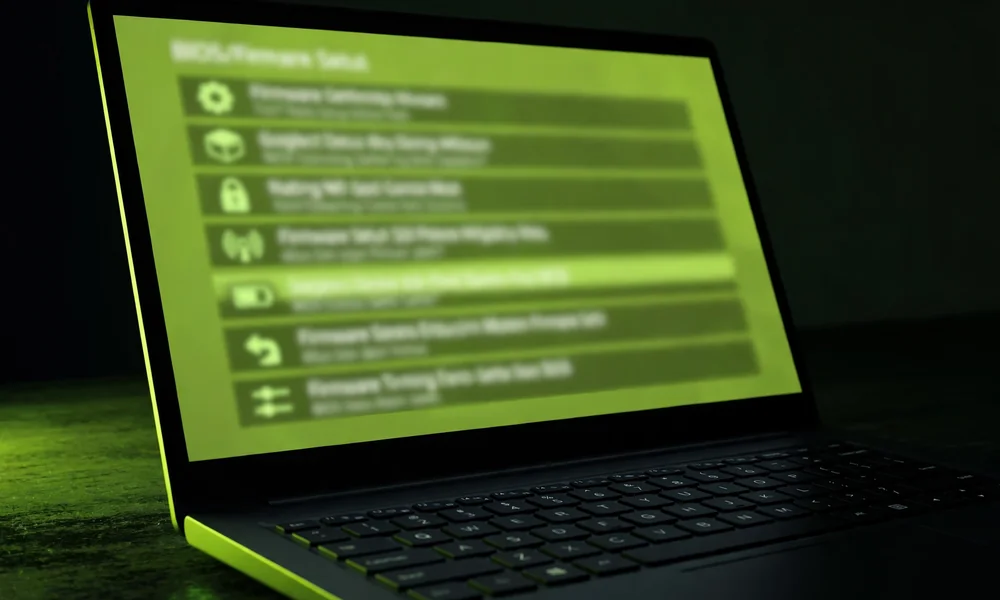
Desktop and laptop computers are the most visible use of UEFI. Almost every PC sold in the last decade boots through UEFI, and the setup screen is where owners change the boot order, enable virtualisation, or turn Secure Boot on and off.
Servers use UEFI heavily. A server may have many disks, several network cards, and a remote management controller, and UEFI’s ability to handle large disks and to boot from a network is essential in a data centre, where machines are often started remotely.
Tablets and small computers use UEFI too. The same firmware standard runs on devices from full-size servers down to compact single-board computers, which keeps the boot process consistent across very different hardware.
Embedded and industrial systems are a growing use. Machines that run factories, medical devices, and transport systems need a reliable, secure way to start, and UEFI’s signed boot chain gives them a way to prove that only trusted software is running.
Virtual machines use UEFI as well. A virtual machine has virtual firmware, and most modern hypervisors offer a UEFI option alongside the older BIOS emulation, so a guest operating system can use Secure Boot and large virtual disks.
Strengths and limits
The greatest strength of UEFI is that it removes the limits BIOS imposed. Disks larger than two terabytes work, booting is faster because the firmware can initialise hardware in parallel, and the setup screen is a proper graphical interface rather than a wall of text.
It is also a strength that UEFI brings real security to the boot process. Secure Boot closes a gap that attackers had exploited for years, and the signed chain from firmware to bootloader to operating system makes it much harder for malicious code to hide below the operating system.
The limits are real, though. UEFI is more complex than BIOS, and its settings can confuse users who only want to install a second operating system. Secure Boot has also caused friction for Linux users, because a bootloader needs a valid signature, and the process for getting one is not always smooth.
UEFI checklist
- Check whether your computer uses UEFI or BIOS before changing boot settings.
- Keep Secure Boot on unless you have a specific reason to turn it off.
- Use GPT partitioning on new disks so you are not limited to 2 TB.
- Set a firmware password if the computer holds sensitive work.
- Update the firmware when the maker releases a security fix.
- Check the boot order after adding a new disk or drive.
- Back up the firmware settings before changing anything important.
- Test booting from a USB drive before you need it in an emergency.
- Note the firmware version so you can check for updates later.
Frequently asked questions
What does UEFI stand for?
UEFI stands for Unified Extensible Firmware Interface. It is the specification for the firmware that starts a computer, checks its hardware, and loads the operating system.
What is the difference between UEFI and BIOS?
BIOS is the older system that started computers from the 1980s, with a text-only setup and a two-terabyte disk limit. UEFI is its modern replacement, with faster booting, a graphical setup, support for large disks, and Secure Boot.
Can I switch from BIOS to UEFI?
Usually not on the same installation, because the two use different disk layouts. A computer can often be changed to UEFI mode, but the disk must be converted to GPT and the operating system reinstalled or repaired to boot in the new mode.
What is Secure Boot?
Secure Boot is a UEFI feature that checks the digital signature of the bootloader before running it. If the signature is missing or wrong, the firmware refuses to start it, which stops malicious code from replacing the bootloader.
Is UEFI faster than BIOS?
Yes, usually. UEFI can initialise hardware in parallel and skip some of the slow steps BIOS performed, so computers reach the operating system more quickly, especially on modern hardware with fast storage.
Do I need to update my UEFI firmware?
Sometimes. Makers release firmware updates to fix security problems, add support for new hardware, and improve stability. Update it when a fix applies to your machine, and follow the maker’s instructions carefully, since a failed update can stop the computer starting.
The bottom line
UEFI explained in one line is this: the modern firmware that starts a computer, checks its hardware, and loads the operating system, with security and large-disk support that BIOS could never offer.
Most users will never think about it, and that is the point: a good boot system is invisible, doing its work in seconds and then stepping aside. Keep Secure Boot on, keep the firmware updated, and UEFI will look after the most vulnerable moment in a computer’s day.
This article is general information about how UEFI works, not advice about configuring firmware for a particular computer.