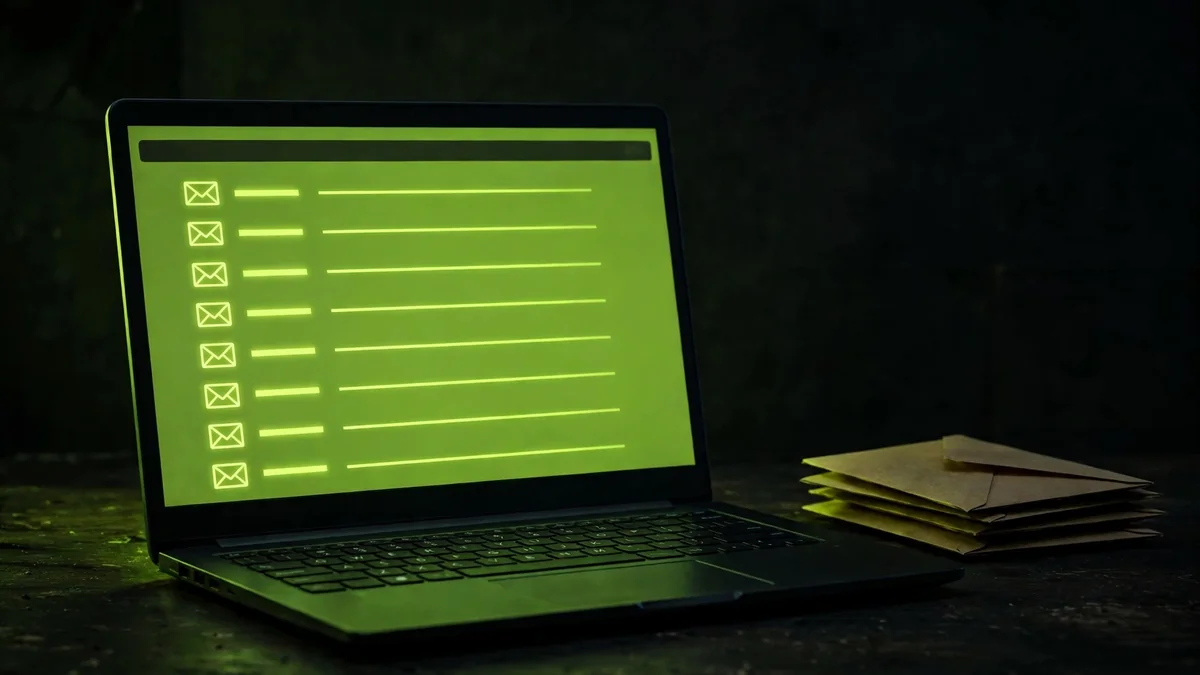
POP3 explained in plain terms means the old, simple protocol that downloads your email from the server onto your own computer. The central question is how a message sent across the internet ends up in your inbox, and the answer is that your mail app connects to the server, asks for the waiting messages, downloads them, and, usually, deletes them from the server.
POP3 stands for Post Office Protocol version 3. It was published in 1988, when most people connected to the internet over a dial-up line, read their mail offline, and had only one computer. The protocol was designed for that world: fetch the mail, store it locally, and hang up.
It has largely been replaced by IMAP for people who read mail on several devices, but it is still used, and it still suits some situations well. This article explains what POP3 is, how it works, and how it compares with the alternatives.
Key takeaways
- POP3 downloads email from the server onto one device.
- It usually deletes messages from the server after downloading them.
- It works offline, since mail is stored on your own computer.
- It suits one device and limited storage, not several devices.
- IMAP is the usual choice today for mail on phones, tablets, and computers.
What POP3 is
POP3 is an application-layer protocol for retrieving email. It runs on TCP port 110, or port 995 when the connection is encrypted, and it gives a mail app a small set of commands: log in, list the waiting messages, download one, delete one, and quit.
The model is deliberately simple. The server is a post office box: messages arrive and wait there until you collect them. Your mail app is the person who collects them, and once collected, the messages live in your house, not in the post office. That is the whole design, and its simplicity is both its appeal and its limit.
POP3 only downloads mail. It does not send it: sending is the job of SMTP, a separate protocol. It also does not synchronise folders, flags, or read states, because it was never designed to. Each download is a one-way trip from the server to your device.
How POP3 works
The process starts when your mail app connects to the server and logs in with your username and password. The app asks how many messages are waiting and how large they are, and then it downloads them one at a time, in order.
Each message is downloaded whole, including its headers, body, and attachments. The app stores the message in a local mailbox file on your computer, and the message is then available to read without any connection. That offline access was essential in the dial-up era, when staying connected cost money by the minute.
By default, the app then tells the server to delete each message it has downloaded. The next time it connects, those messages are gone from the server, and they exist only on your computer. Many mail apps offer a setting to leave a copy on the server for a few days, which helps if you read mail on two devices, but that is a workaround rather than the protocol’s design.
POP3 has no concept of folders on the server. It sees only the inbox, and it cannot move a message to another folder, mark it as read on the server, or show which messages you have already seen from another device. Our guide to SMTP explains the protocol that sends mail on its way, and our guide to TCP/IP explains the lower layers that carry these protocols across the internet.

Comparing POP3 with IMAP and webmail
POP3 is one of three ways people read email. IMAP keeps mail on the server and synchronises it across devices, and webmail reads it through a browser. Each approach suits a different kind of user.
The table below sets out the main contrasts.
| Aspect | POP3 | IMAP | Webmail |
|---|---|---|---|
| Where mail lives | On your device | On the server | On the server |
| Several devices | Poor, mail sits on one | Good, all stay in sync | Good, any browser works |
| Offline reading | Yes, mail is local | Only messages already fetched | Limited, needs connection |
| Server storage | Freed after download | Used until you delete mail | Used until you delete mail |
| Folders and flags | Not supported | Fully synchronised | Fully supported |
The practical result is that POP3 wins when one computer holds all the mail and storage on the server is tight, IMAP wins when several devices must stay in step, and webmail wins when you need mail from any computer without setting anything up.
Where POP3 is used
Single-computer households are the classic use of POP3. A person with one desktop computer who reads mail only there gains nothing from synchronisation, and POP3 gives them a complete local copy that works even when the internet is down.
Small businesses with tight mail quotas use POP3 to keep the server empty. Some hosting plans allow only a small mailbox, and downloading mail to a local computer frees that space automatically, so the mailbox never fills up and starts bouncing new messages.
Archiving is another use. A business that must keep copies of its mail can use POP3 to pull messages onto a local archive machine, where they are backed up with the rest of the company’s data rather than left on a provider’s server.
Slow or expensive connections still favour POP3 in some places. Where bandwidth is limited, downloading mail once and reading it offline is cheaper than keeping a constant synchronised connection, and POP3’s simple commands use very little data.
Legacy systems keep POP3 alive too. Older mail servers, embedded devices, and some corporate setups still speak POP3, and changing them would cost more than the protocol’s limits cost their users.
Strengths and limits
The greatest strength of POP3 is its simplicity. The protocol has only a handful of commands, it is easy to implement, and it is supported by every mail app and server. A POP3 setup rarely breaks, because there is so little to break.
It is also a strength that POP3 gives you a real local copy of your mail. If the provider fails, closes your account, or loses its data, your messages are still on your computer. That independence is worth having for mail that matters.
The limits are the reason most people have moved on. POP3 does not synchronise, so reading mail on a phone and a computer means the two drift apart. If the one computer holding your mail fails without a backup, the mail is gone, and there is no server copy to recover from.
POP3 checklist
- Decide whether you need mail on more than one device before choosing POP3.
- Turn on encryption, using port 995, so passwords and mail are not sent in plain text.
- Choose whether to delete mail from the server or leave a copy for a few days.
- Back up your local mailbox regularly, since it may be the only copy.
- Check your mail provider’s storage limit if you leave copies on the server.
- Use a strong, unique password for the mail account.
- Keep your mail app updated so security fixes reach it.
- Test sending as well as receiving, since sending uses SMTP, not POP3.
- Move to IMAP if you start reading mail on a phone as well as a computer.
Frequently asked questions
What does POP3 stand for?
POP3 stands for Post Office Protocol version 3. It is the protocol a mail app uses to download messages from a server onto a device, named after the post office model of collecting mail from a box.
What is the difference between POP3 and IMAP?
POP3 downloads mail to one device and usually deletes it from the server, while IMAP keeps mail on the server and synchronises it across all your devices. POP3 suits one computer, IMAP suits several devices.
Does POP3 delete my email from the server?
By default, yes, after downloading it. Most mail apps let you change that setting to leave a copy on the server for a number of days, which is useful if you sometimes read mail on another device.
Can I use POP3 on my phone?
Yes, most mail apps support it, but it is rarely the best choice for a phone. Mail downloaded to the phone will not appear on your computer, and mail read on the computer will not be marked read on the phone.
Is POP3 secure?
It can be, if it uses encryption on port 995. Without encryption, the original protocol sends passwords and messages in plain text, which anyone on the same network could read. Always use the encrypted form.
Why would anyone still use POP3?
For a single computer, limited server storage, offline reading, or archiving, POP3 is simple and reliable. It is also the only option on some older servers. For most people with several devices, IMAP is the better choice.
The bottom line
POP3 explained in one line is this: a simple protocol that downloads your email onto one computer and, usually, removes it from the server.
It is a product of the dial-up era, and its limits show when mail must follow you across devices. But for one computer, a small mailbox, or a local archive, its simplicity still earns its place.
This article is general information about how POP3 works, not advice about setting up email for a particular person or organisation.