USB explained in plain terms means understanding how a single small connector became the standard way that computers, phones, and countless other devices share power and information. The central question is how one port can charge a phone, connect a keyboard, and transfer files to a hard drive, and the short answer is that USB carries both power and data through the same cable, using a shared set of rules that almost every maker follows.
Before USB arrived, connecting a device was often a chore. Printers, mice, and cameras each needed their own port and cable, and a computer could run out of the right sockets entirely. USB replaced that tangle with one familiar shape that works across brands.
Today the letters USB appear on almost everything with a chip inside it. Laptops, phones, tablets, televisions, cars, and headphones all use it to charge or communicate, and the newest connector can carry video to a monitor and charge a laptop at the same time. This article explains what USB is, how it moves data and power, how the versions differ, and how to choose the right cable.
Key takeaways
- USB is a shared standard that lets devices exchange data and power through one cable.
- The same port can charge a phone, connect a keyboard, or transfer files to a drive.
- USB versions differ mainly in speed and power, not in the basic idea behind them.
- USB-C is the modern connector shape, and it works either way up.
- Not every USB cable is equal: speed, power, and video support vary from cable to cable.
What USB actually is
USB stands for Universal Serial Bus, and the name describes its purpose. It is universal because it is meant to work with almost any device, and it is serial because it sends data one bit at a time along a wire, in a steady stream. A group of leading computer companies developed the first version in the mid-1990s, and an industry body has managed the standard ever since.
A USB connection always has a host and a device. The host is usually a computer, a phone, or a charger, and it controls the conversation, while the device responds to the host’s requests. When you plug in a mouse, the computer asks the mouse what it is, the mouse identifies itself, and the two agree on how they will communicate. This handshake happens in a fraction of a second, which is why a device usually starts working the moment it is plugged in.
Inside the cable are separate wires for power and for data. The power wires carry a low-voltage supply from the host to the device, while the data wires carry information in both directions. That separation means a phone can charge while it is also transferring photos.
How USB moves data and power
Data travels over USB as a stream of digital signals, organised into packets that carry a small piece of information plus the details needed to route it correctly. The host polls connected devices in turn, asking each one whether it has anything to send. This orderly approach prevents devices from talking over each other, even when several share a hub.
Different kinds of traffic get different treatment. A keyboard sends tiny amounts of data, but it needs each keystroke to arrive without delay, so it gets frequent, regular turns. A hard drive moves large amounts of data, and it gets bigger turns when it needs them, because a small delay matters less than the total speed.
Power delivery is the other half of the story. The original USB specification supplied only a small amount of power, enough for a mouse or a keyboard. Later versions increased that limit, and the modern power delivery standard allows a single cable to supply enough power to charge a laptop, as long as the charger, the cable, and the device all support it.
USB versions and speeds
USB has gone through several generations, and each one raised the ceiling on speed. The first widely used version, USB 1.1, managed about 12 megabits per second, enough for a keyboard but slow for anything larger. USB 2.0 raised that to 480 megabits per second, and it became the workhorse of the 2000s, appearing on almost every computer and printer of the era.
USB 3.0 arrived in 2008 and multiplied the speed again, reaching 5 gigabits per second, and later revisions pushed that to 10 and then 20 gigabits per second. USB4, released in 2019, can reach 40 gigabits per second on a suitable cable, and it can also carry display signals, so one cable can connect a laptop to a monitor, a drive, and a charger at the same time. A higher version number means a faster ceiling.
Speed in practice depends on more than the version number. A drive, a cable, and a port must all support the same speed, and the slowest of the three sets the pace. A fast drive in an old port runs at the old port’s speed, and a cheap cable may quietly limit a fast connection.
Comparing USB versions
The table below sets out the main versions side by side, with their headline speeds and typical uses.
| Version | Maximum speed | Typical use | Power |
|---|---|---|---|
| USB 1.1 | 12 Mbps | Keyboards, mice, and other simple devices | Low |
| USB 2.0 | 480 Mbps | Printers, flash drives, and everyday accessories | Low |
| USB 3.0 and 3.1 | 5 to 10 Gbps | External drives, webcams, and fast storage | Moderate |
| USB 3.2 and USB4 | 20 to 40 Gbps | High-speed drives, docks, and monitors | High, with power delivery |
These figures are maximums, and real-world speeds are usually lower. A slow drive or a poor cable can hold a transfer back, even when the device is rated for a faster standard.
USB connector types
Over the years USB has used several connector shapes, and the shape is separate from the version. USB-A is the familiar flat rectangle that appeared on computers for decades, and it only fits one way up. USB-B is the squarer shape found on older printers, while Mini-USB and Micro-USB were smaller shapes used on cameras and early smartphones.
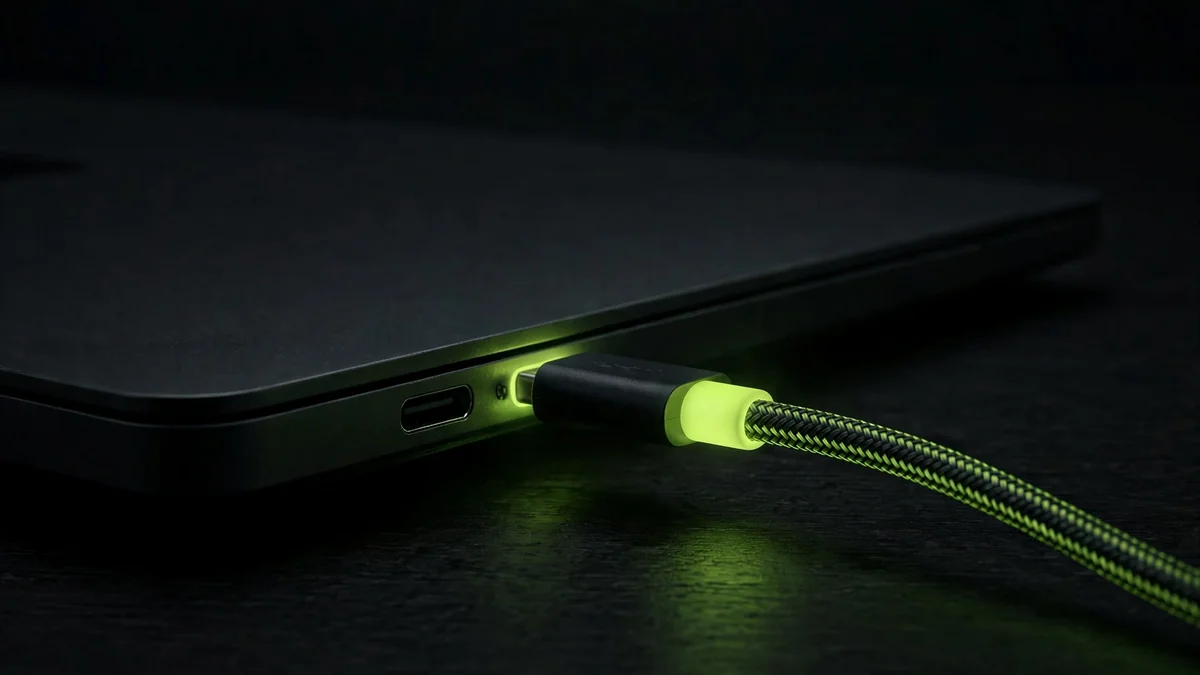
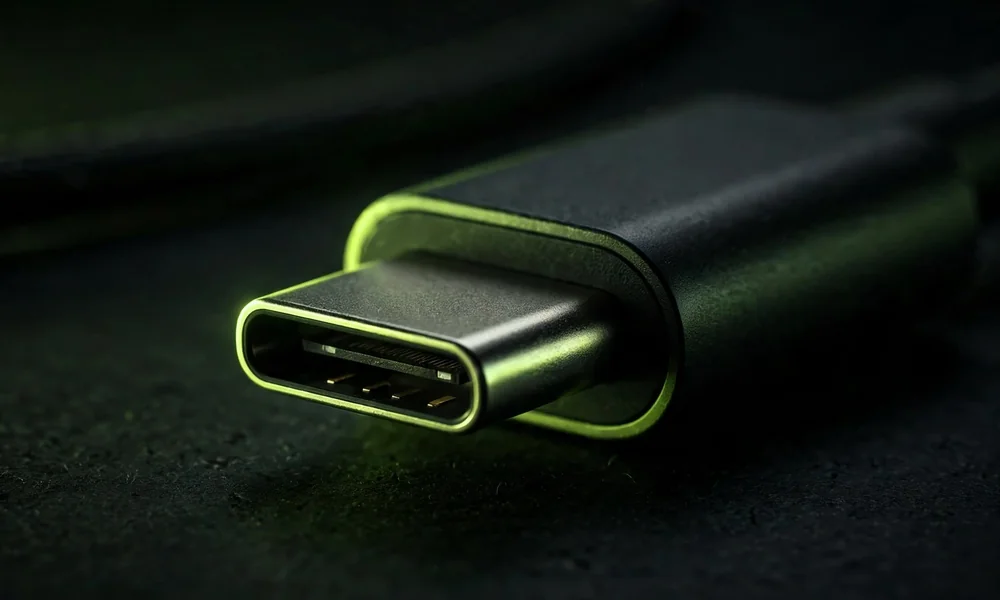
USB-C is the modern shape, and it has steadily replaced the others. It is a small oval that fits either way up, so there is no wrong way to plug it in, and it is the connector used by most new phones, tablets, and laptops. It also supports the fastest speeds and the highest power levels, which is why a single USB-C port can now do the work of several older ports. Our guide to the motherboard explains where these ports sit on a computer and how they connect to the rest of the system.
The shape alone does not tell you what a cable can do. A USB-C cable may support only slow charging, or it may carry fast data, video, and high-power charging, and the two can look identical from the outside. A cable supplied with a laptop is generally the safest choice for that device.
Where USB is used every day
USB is the quiet plumbing of modern computing, and it shows up in places most people never notice. A keyboard and a mouse connect through it, a printer receives documents through it, and an external drive backs up files through it. Game controllers, microphones, webcams, and drawing tablets all use the same standard, which is why they can usually be swapped between computers without installing new software.
Small computers rely on it too. Our guide to the Raspberry Pi shows how a credit-card-sized computer uses USB ports for its keyboard, mouse, storage, and power. Charging is the other everyday use. The same port that charges a phone can also charge headphones, a smartwatch, or a portable speaker.
USB has also spread beyond computing. Cars use it for phone charging and music, televisions use it to power streaming sticks, and many appliances use it for updates and diagnostics.
Strengths and limits
The greatest strength of USB is its universality. One cable type can connect thousands of different devices from hundreds of makers, and a device bought today will usually work with a computer bought years ago, even if it runs more slowly on the older port. That backward compatibility is a deliberate part of the standard, and it is a major reason USB has survived for three decades while other connectors came and went.
The limits are real, though. USB cables are short by design, and a long cable can cause data errors or slow speeds, so USB is not the right choice for connecting devices across a room. The variety of versions and cable capabilities also causes confusion, and a drawer full of lookalike cables can hide the fact that only one of them supports fast charging.
USB checklist
- Check the version of your port and your cable before expecting fast transfer speeds.
- Use the cable that came with a device for charging it, especially for laptops and tablets.
- Keep a good USB-C cable handy, since most new phones, tablets, and laptops use it.
- Do not force a connector: USB-A fits one way up, and USB-C fits either way up.
- Label fast cables so you can tell them apart from slow charging-only cables.
- Use a powered hub when connecting several hungry devices to one port.
- Eject drives safely before unplugging them, so files are not corrupted mid-write.
- Replace frayed or damaged cables, since they can fail or overheat.
- Keep spare cables short where possible, because long cables can slow a connection down.
Frequently asked questions
What does USB stand for?
USB stands for Universal Serial Bus: a single standard connection that works with almost any device, sending data one bit at a time.
Why is USB-C better than older USB connectors?
USB-C is smaller, fits either way up, and supports faster data, higher power, and video output through one port. Older connectors such as USB-A only fit one way up and cannot carry as much speed or power.
Can any USB-C cable fast-charge my phone?
No. Some USB-C cables are built only for slow charging, while others support fast charging and high speeds. The phone, the charger, and the cable must all support it.
Does USB 3.0 work in a USB 2.0 port?
Yes. USB is backward compatible, so a newer device works in an older port. It simply runs at the older port’s slower speed.
Can USB carry video to a monitor?
Yes, with the right port and cable. USB-C ports that support display output can drive a monitor, and USB4 can carry video alongside data and power, so one cable can connect a laptop to a full desk setup.
Why is my USB transfer slower than the advertised speed?
The advertised speed is a maximum, and the slowest part of the chain sets the real speed. A slow drive, an old port, a long cable, or a cheap cable can each hold the transfer back, even when the device itself is rated for a faster standard.
The bottom line
USB explained in one line is this: a single shared standard lets almost any device exchange data and power through one cable, with the host and the device agreeing on speed and power in a fraction of a second.
The details matter when you buy a cable or choose a port, because versions, shapes, and cable quality decide how fast a transfer runs and how quickly a device charges. Choose the right cable for the job, and the humble USB port will quietly connect almost everything you own.
This article is general information about how USB works, not buying advice for a particular device, cable, or charger.