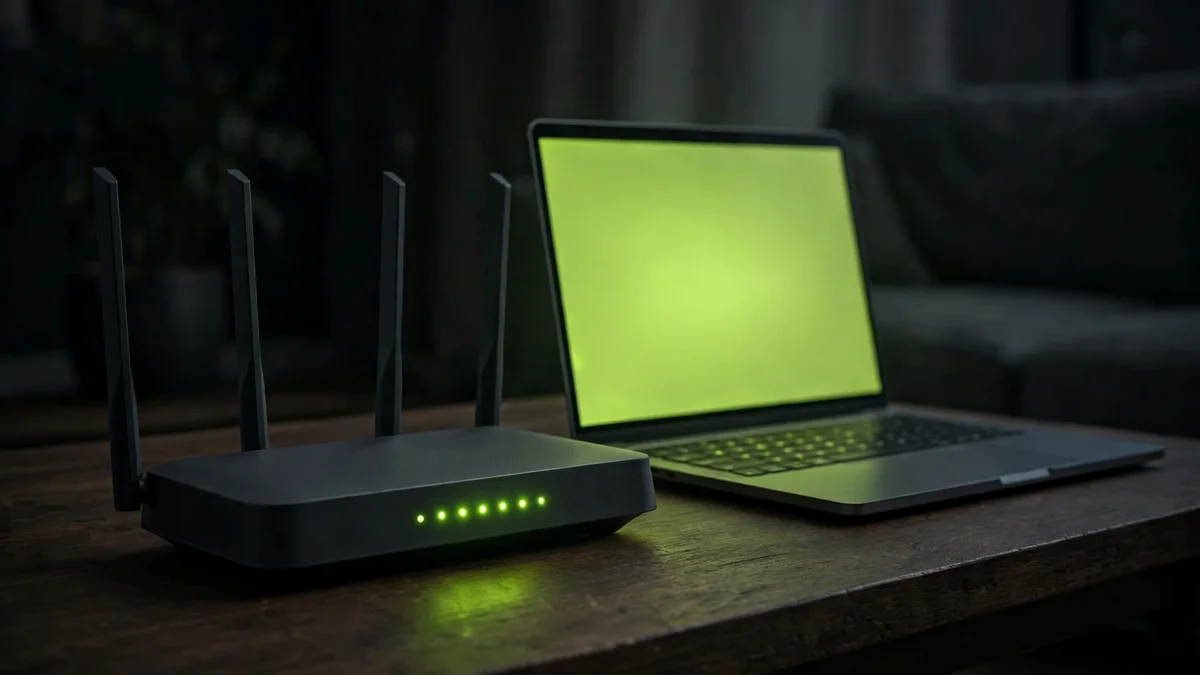
A Wi-Fi 7 dropout fix is usually simpler than it looks. The drops are rarely caused by faulty hardware.
So why does Wi-Fi 7 keep dropping, and how do you fix it? In most homes the answer is one of four things: a driver or firmware problem, multi-link operation switching bands at the wrong moment, a 320 MHz channel that is too wide for the room, or a 6 GHz signal that cannot get through the walls.
Key takeaways
- Update router firmware and the Wi-Fi adapter driver first. Early Wi-Fi 7 software is the most common cause of dropouts.
- Multi-link operation is powerful but immature. Turning it off is a valid fix, and it often stops drops immediately.
- 320 MHz channels only work on the 6 GHz band, and 6 GHz has a shorter range through walls than 5 GHz. Narrowing the channel to 160 MHz is often the fastest cure.
- Diagnose first: note when drops happen, which devices are affected and whether wired devices stay online.
Why Wi-Fi 7 connections keep dropping
Wi-Fi 7, formally known as IEEE 802.11be, is the biggest change to wireless networking in years. Its headline feature is multi-link operation, or MLO, which lets a compatible device connect on more than one band at once, typically 2.4 GHz, 5 GHz and 6 GHz.
Multi-link operation and band switching
MLO only works when the router, the device driver and the operating system all agree, many times a second, about which links are active. If any part of that chain is slightly out of step, frames are lost and the device may disconnect, which is why a network can show full signal while calls freeze.
Firmware and driver problems
Wi-Fi 7 hardware reached the market before its software was fully mature, and makers have since shipped many firmware and driver updates fixing connection handling. A router on launch firmware, or a laptop on the driver Windows installed automatically, is a common cause of repeated drops.
Windows support matters too. Full Wi-Fi 7 support, including MLO, arrived with Windows 11 version 24H2, and 6 GHz does not work on Windows 10 at all.
Channel width and the 6 GHz band
Wi-Fi 7 allows 320 MHz wide channels, double the 160 MHz maximum of Wi-Fi 6E, but those ultra-wide channels only exist on the 6 GHz band. A 320 MHz channel needs a large stretch of clean spectrum, and in a flat or a busy neighbourhood that stretch may not exist.
The 6 GHz band itself is part of the problem. It offers cleaner spectrum because fewer devices use it, but its signals pass through walls and floors less effectively than 5 GHz, so a laptop that works in the same room as the router can drop repeatedly two rooms away.
Interference, placement and client compatibility
Not every dropout is a Wi-Fi 7 problem. Microwaves, baby monitors and neighbouring networks crowd the 2.4 GHz band, while radar can force a router off certain 5 GHz channels without warning, briefly dropping connected devices.
A router shut inside a cabinet, placed on the floor, or beside a large metal object will also struggle, and the effect is strongest on 6 GHz. Some older printers and smart plugs cannot handle WPA3 or cope with one network name spanning three bands, so when only older devices drop, give them their own band.
How to diagnose the dropout pattern
Guessing wastes time, so spend ten minutes finding the pattern first. Ask: does the dropout affect one device or every device, does it happen everywhere or only in certain rooms, and do wired devices stay online while wireless devices drop?
If every wireless device drops at once, the router is the prime suspect: its firmware, temperature, channel settings or internet connection. If only one device drops, look at that device first: its driver, its power settings and its distance from the router.
Finally, run a controlled test: sit in the same room as the router, connect to the 5 GHz band only, and use it for half an hour. If it is stable there, the problem is range, channel width or MLO. If it still drops at close range on a single band, suspect firmware, drivers or a faulty router.
Match the symptom to the fix
Find the row that matches your experience and start with its fix, then move on only if the drops continue.
| Symptom | Most likely cause | First fix to try |
|---|---|---|
| Drops every few minutes, all devices | Router firmware or overheating | Update firmware, improve ventilation, restart the router |
| One laptop drops, others are fine | Adapter driver or power saving | Update the driver, disable adapter power saving |
| Drops after sleep or waking the laptop | Power management conflict | Disable adapter and PCI Express power saving |
| Works near the router, drops in other rooms | Weak 6 GHz range or 320 MHz channel | Narrow the 6 GHz channel to 160 MHz, prefer 5 GHz |
| Network vanishes from the list | 6 GHz or WPA3 mismatch | Check Windows 11 24H2, set security to WPA3 |
| Only older devices drop | Client compatibility with MLO or WPA3 | Give older devices a separate 2.4 GHz network |
The step-by-step Wi-Fi 7 dropout fix
Apply these fixes one at a time and test after each one. If a change makes no difference, revert it before moving on.
Step 1: Update firmware and drivers
Open the router admin page or app and install the latest firmware, then restart the router and let it settle for two minutes. Do the same for the device: download the latest Wi-Fi driver from the laptop or adapter maker, and choose a clean installation if the installer offers one.
On Windows, press Windows and R, type winver, and check it shows version 24H2 or later. This step alone resolves many Wi-Fi 7 dropouts, because so many are fixed in software updates rather than settings.
Step 2: Stop the adapter sleeping
Power saving is the most common cause of drops on a single laptop. Open Device Manager, expand Network adapters, open the Wi-Fi adapter properties, and on the Power Management tab uncheck the option that allows the computer to turn off the device to save power.
In Power Options, open the advanced settings for the active plan and set PCI Express Link State Power Management to Off. Wi-Fi 7 needs precise timing to stay synchronised, and even a brief power nap can break that timing and drop the connection.
Step 3: Narrow the 6 GHz channel
In the router settings, find the 6 GHz channel width and change it from 320 MHz to 160 MHz. A stable 160 MHz channel almost always delivers a better real-world experience than a 320 MHz channel that keeps dropping.
If the router lets you choose the channel, pick a clean one away from neighbours, and avoid automatic channel selection while diagnosing. Test for a day before trying 320 MHz again.
Step 4: Turn off multi-link operation
If drops continue, disable MLO. On the router this is usually a setting in the wireless or Wi-Fi 7 section; on a Windows laptop it may appear as Multi-Link Operation on the Advanced tab of the adapter properties.
Disabling MLO forces the device onto a single band, removing the band-switching failures behind many dropouts. You lose the headline feature, but a stable single-band connection is worth far more than an unstable multi-link one, and you can re-enable MLO after a future update.
Step 5: Separate the bands and fix security
Give the 2.4 GHz, 5 GHz and 6 GHz bands different network names, at least while diagnosing. Connect modern devices to 5 GHz or 6 GHz and move older devices, printers and smart home gadgets to the 2.4 GHz network.
Confirm the 6 GHz network uses WPA3 security, since the band requires it, and use WPA2/WPA3 mixed mode on the other bands if older devices need it. Rebuild any saved profile that keeps failing: forget the network, reconnect from scratch, and re-enter the password.
Step 6: Fix placement, heat and interference
Move the router into the open, at least a metre off the floor, near the centre of the home, and away from thick walls, mirrors, large metal objects and microwaves. Keep it out of closed cabinets and away from other electronics that generate heat.
A router that feels very hot, or that drops all of its networks at once and recovers a few minutes later, may be overheating, so give it space and airflow. If the home is large or has thick walls, a wired access point in the weak area will do more than any setting change.
A quick decision checklist
Use this checklist when the drops return, or when you set up a new Wi-Fi 7 router. Each item takes a minute or two, and the order reflects what fixes the most cases first.
- Router firmware is up to date, and the router has been restarted after the update.
- Wi-Fi adapter driver is the latest version from the maker, installed cleanly.
- Windows is version 11 24H2 or later, on any device that should use Wi-Fi 7.
- Adapter power saving is off, and PCI Express Link State Power Management is set to Off.
- 6 GHz channel width is 160 MHz, not 320 MHz, unless 320 MHz has proven stable.
- MLO is off if drops persist, or the adapter is pinned to one preferred band.
- 6 GHz security is WPA3, and older devices have their own 2.4 GHz network.
- The router is in the open, ventilated, and away from thick walls and metal.
- Only after all of the above: consider a factory reset, then a replacement router.
If the checklist is complete and drops continue on every device at close range, the router itself may be faulty, so test with a different router or a wired connection before buying a replacement. For a wider view, see our overview of the future of the internet, and our guide to cloud network security architecture.
Frequently asked questions
Why does my Wi-Fi 7 connection drop but my old Wi-Fi 6 devices stay online?
Older devices use a single band and mature drivers, so they avoid multi-link operation and 320 MHz channels, the two newest failure points. Your Wi-Fi 7 device exercises features the older devices never touch.
Should I turn off MLO permanently?
Not necessarily. Treat it as a diagnostic step and a temporary fix: disable it, confirm the connection is stable, then re-enable it after the next firmware or driver update.
Is 160 MHz slower than 320 MHz in real use?
On paper, yes, but in a real home the difference is rarely noticeable. A stable 160 MHz channel delivers consistent speed, while a dropping 320 MHz channel interrupts calls, downloads and games.
Do I need a new laptop to use Wi-Fi 7 properly?
You need a Wi-Fi 7 adapter and Windows 11 version 24H2 or later for the full feature set. A laptop with an older adapter can still connect, but it will use the older standard it supports.
Can a neighbour’s router cause my Wi-Fi 7 dropouts?
Yes, especially on a 320 MHz channel in a flat or a dense neighbourhood, where wide channels overlap heavily. Narrowing the channel to 160 MHz and choosing a cleaner channel usually solves it.
Conclusion
Wi-Fi 7 dropouts are frustrating, but they are usually a software and settings problem, not a hardware failure. Update the firmware and drivers, stop the adapter from sleeping, narrow the 6 GHz channel to 160 MHz, and turn off multi-link operation if the drops continue. Test after each change and keep the setting that fixed it.