Thunderbolt explained in plain terms means understanding the single cable that can carry data, video, power, and a network connection all at once, faster than almost any other port on a computer. The central question is how one small connector can replace a desk full of cables, and the answer is that Thunderbolt combines the PCI Express bus and DisplayPort video into one high-speed link, and lets devices share it in a chain.
Thunderbolt is a hardware interface developed by Intel and Apple, first released in 2011, that carries data at speeds far beyond ordinary USB. The current versions, Thunderbolt 4 and Thunderbolt 5, offer 40 and 80 gigabits per second, and the connector is the same small oval shape as USB-C, which is why the two are so often confused.
The idea is simple: one port, everything through it. A laptop with two Thunderbolt ports can drive two 4K monitors, read an external drive at full speed, charge its battery, and connect to a wired network, all through a docking station on a single cable. This article explains what Thunderbolt is, how it works, and where it is used.
Key takeaways
- Thunderbolt is a high-speed interface combining PCIe data and DisplayPort video.
- Thunderbolt 4 runs at 40 gigabits per second; Thunderbolt 5 at 80.
- It uses the USB-C connector, but it is not the same as USB.
- Devices can be daisy-chained, up to six in a row.
- One cable can carry data, video, power, and networking.
What Thunderbolt is
Thunderbolt is a connection standard that moves data between a computer and its peripherals at very high speed. It began as a joint project between Intel and Apple, originally called Light Peak, and it was designed to replace the many different ports on a computer with one fast, universal connection.
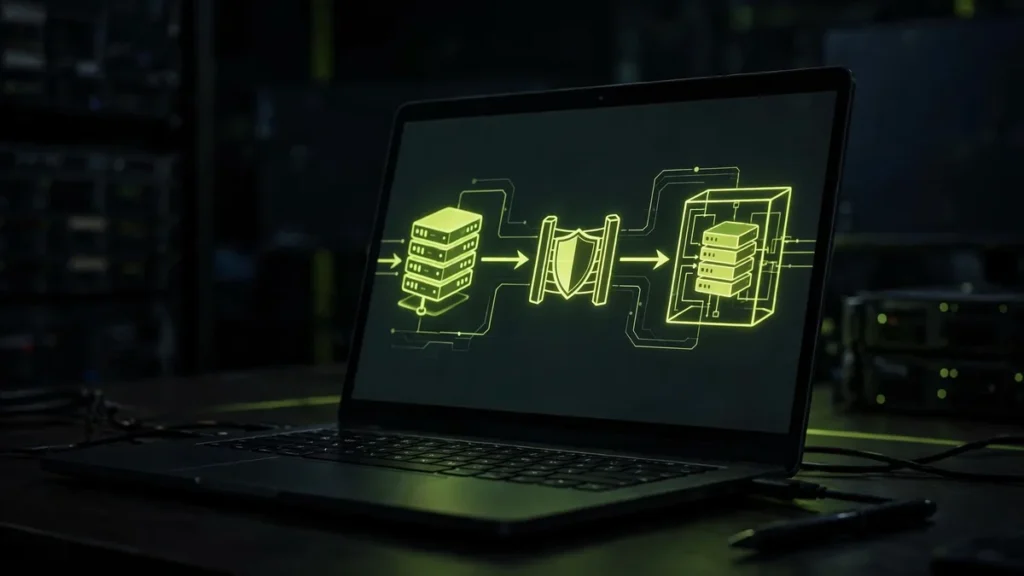
The technology works by tunnelling other protocols through one link. Inside a Thunderbolt connection, PCI Express carries data to and from drives and expansion cards, DisplayPort carries video to monitors, and USB carries slower devices, all sharing the same cable. The computer and the device negotiate which protocols are needed, and the link divides its bandwidth between them.
Thunderbolt 3, released in 2015, moved to the USB-C connector, which is the small reversible oval now found on almost every laptop and phone. Thunderbolt 4, from 2020, kept the same 40 gigabit speed but made the minimum requirements stricter, and Thunderbolt 5, from 2023, doubled the speed to 80 gigabits per second, with a boost mode of 120 for video. Our guide to USB explains the standard that shares Thunderbolt’s connector, and our guide to PCIe explains the bus that carries Thunderbolt’s data.
How Thunderbolt works
A Thunderbolt link starts with a handshake. When a device is plugged in, the two sides exchange information about what they are and what they can do, and the host checks whether the device is allowed to connect, which is a security feature, since a Thunderbolt device has direct access to the computer’s memory through PCIe.
Data travels in packets, and the link switches between protocols as needed. A frame of video, a block of data from a drive, and a network packet can all travel down the same cable in turn, with the controller deciding how to share the bandwidth, which is why a monitor and a fast drive can work at full speed on one port.
Daisy chaining is one of Thunderbolt’s signature features. Devices can be connected in a row, one to the next, up to six deep, with the computer at one end, so that a monitor, a drive, and a docking station can all share a single port on the laptop. Each device passes the signal on to the next, and the chain works as long as every device in it is powered.
Power delivery is built in. A Thunderbolt port can supply up to 100 watts in Thunderbolt 4, and up to 240 watts in Thunderbolt 5, which is enough to charge a laptop through the same cable that carries its monitors and drives, which is why a docking station needs only one cable to the computer.
Security has improved with each version. Early Thunderbolt allowed any device to connect, which created a risk, since a malicious device could read memory directly. Modern systems require approval for new devices, and Thunderbolt 4 and 5 use hardware protections that limit what a device can access.
Comparing Thunderbolt with other connections
Thunderbolt is one of several ways to connect peripherals, and each suits a different need. USB is universal and cheap, HDMI carries video only, and Ethernet carries networks, but each has its own trade-offs.
The table below sets out the main contrasts between the leading approaches.
| Aspect | Thunderbolt 4 | USB 3.2 | HDMI 2.1 |
|---|---|---|---|
| Speed | 40 gigabits per second | 10 gigabits per second | 48 gigabits per second |
| Carries | Data, video, power, network | Data and power | Video and audio only |
| Connector | USB-C | USB-C or USB-A | HDMI |
| Daisy chain | Yes, up to six devices | No, needs a hub | No |
| Best for | Docks, fast drives, monitors | Everyday devices | TVs and monitors |
The practical result is that Thunderbolt is the right choice for a docking station, a fast external drive, or several monitors on one cable, USB is the choice for everyday devices, and HDMI is the choice for a television or a single monitor.
Where Thunderbolt is used
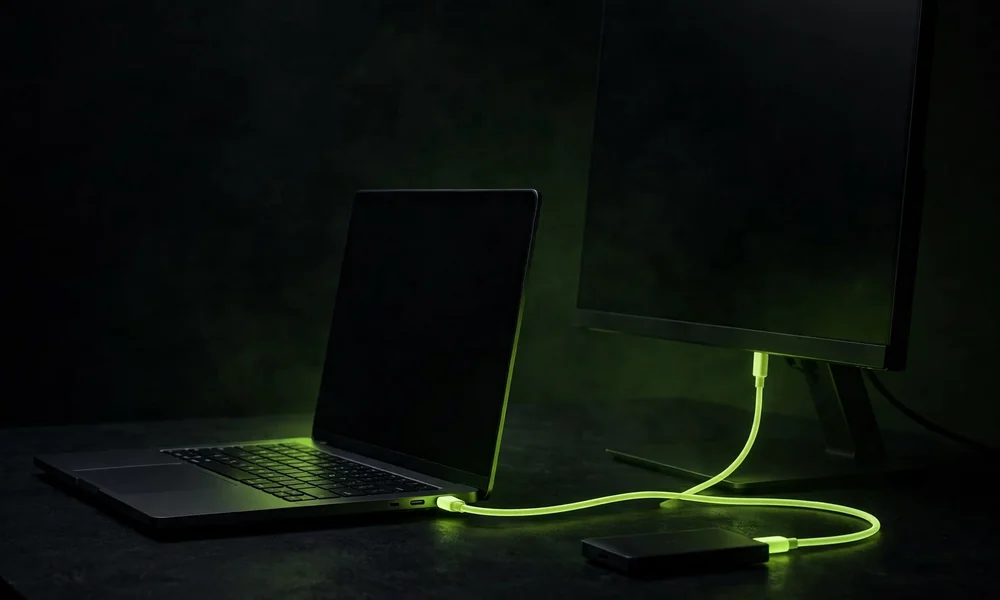
Laptop docking stations are the largest use. A worker plugs one Thunderbolt cable into a laptop and gets two monitors, a keyboard, a mouse, a wired network, and charging, which is why offices have moved to Thunderbolt docks instead of a desk full of cables.
External storage uses Thunderbolt for speed. A video editor working with 4K or 8K footage needs a drive that can keep up with the playback, and a Thunderbolt drive can read at several gigabytes per second, which a USB drive cannot match.
External graphics cards use Thunderbolt to add power to a laptop. An enclosure holding a desktop graphics card connects over Thunderbolt, and the laptop uses it for gaming or rendering, which gives a thin laptop the graphics of a desktop when it is on a desk.
Professional audio and video use Thunderbolt for low latency. An audio interface or a video capture device needs data to arrive on time, every time, and Thunderbolt’s direct PCIe connection gives it the speed and the timing that USB cannot guarantee.
Monitors use Thunderbolt to simplify the desk. A monitor with a Thunderbolt hub can drive the display, charge the laptop, and connect a keyboard and a drive, all through the one cable that also carries the picture.
Strengths and limits
The greatest strength of Thunderbolt is its versatility. One port carries data, video, power, and networking, at speeds no other general connection matches, which is why a single cable can replace a whole desk of wires.
It is also a strength that Thunderbolt is built on open standards. It uses PCIe and DisplayPort inside, and USB-C outside, which means it works with the devices and cables that already exist, and the newest versions are royalty-free, so more makers are adopting it.
The limits are real, though. Thunderbolt devices and cables cost more than USB ones, and the speed depends on the cable: a long or cheap cable may fall back to USB speeds, and not every USB-C port is a Thunderbolt port, which confuses buyers. The daisy chain also fails if one device in the middle is switched off.
Thunderbolt checklist
- Check the port has a lightning symbol, or it may be USB only.
- Use a certified Thunderbolt cable for full speed.
- Keep cables short, since long cables may slow down.
- Approve new devices the first time they connect.
- Count your monitors, since one port has a bandwidth limit.
- Keep the chain to six devices or fewer.
- Check power delivery, since not all ports charge at full speed.
- Update firmware on docks and devices when updates appear.
- Test a dock with your exact laptop before relying on it.
Frequently asked questions
What is Thunderbolt in simple terms?
Thunderbolt is a very fast connection for computers that uses the USB-C shape. One cable can carry data, video, power, and a network, which is why a single cable can connect a laptop to monitors, drives, and a dock.
What is the difference between Thunderbolt and USB-C?
USB-C is the shape of the connector, while Thunderbolt is the technology inside. A USB-C port may be Thunderbolt, or it may be plain USB, and only a Thunderbolt port offers the full speed and features.
How fast is Thunderbolt?
Thunderbolt 4 runs at 40 gigabits per second, and Thunderbolt 5 at 80, with a boost to 120 for video. That is four to eight times faster than common USB 3.2.
Can I daisy-chain Thunderbolt devices?
Yes, up to six devices in a row, with the computer at one end. Each device passes the signal to the next, so a monitor, a drive, and a dock can share one port.
Do I need a special cable for Thunderbolt?
Yes, for full speed. A certified Thunderbolt cable carries the high-speed signal, while an ordinary USB-C cable may work but fall back to USB speeds. Short cables are best.
Is Thunderbolt the same as USB4?
Not quite, but they are closely related. USB4 is built on Thunderbolt 3 technology, and Thunderbolt 4 is a stricter version of USB4 with guaranteed minimum speeds. A Thunderbolt 4 port is always USB4, but a USB4 port is not always Thunderbolt.
The bottom line
Thunderbolt explained in one line is this: one small connector carrying PCIe data, DisplayPort video, and power at up to 80 gigabits per second, so that a single cable can run a whole desk.
It began as a premium port on expensive laptops, and it has become the standard for docks, fast drives, and multi-monitor desks, because nothing else does so much through so little.
This article is general information about how Thunderbolt works, not advice about choosing a port or a cable for a particular computer.