Git explained in plain terms means a tool that records every change made to a set of files, so you can see what changed, when it changed, and who changed it. The central question is how teams can work on the same code at the same time without overwriting each other, and the answer is that Git keeps a complete history of snapshots, and lets each person work on a separate branch until their work is ready to combine.
Almost every modern software project uses Git, from a single student writing a first program to thousands of engineers building an operating system. It runs on your own computer, it works without an internet connection, and it keeps the full history of a project in a small hidden folder inside the project itself.
Git was created in 2005 by Linus Torvalds, the creator of Linux, after the tool the Linux kernel team had been using was withdrawn. He needed a system that was fast, reliable, and able to handle thousands of contributors working in parallel. The result became the most widely used version control system in the world.
Key takeaways
- Git records snapshots of your files, so any earlier version can be recovered.
- Changes are grouped into commits, each with a message explaining what changed and why.
- Branches let you try new work separately without disturbing the main version.
- Merging combines branches, and Git flags conflicts when two people change the same lines.
- Remote repositories let teams share work, review it, and keep a backup copy offsite.
What Git is
Git is a distributed version control system. Version control is the practice of tracking changes to files over time, and distributed means that every copy of a project carries its own complete history. There is no single central copy that everyone must depend on, so you can work offline and share your changes later.
A Git project is called a repository, often shortened to repo. It contains your files and a hidden directory that stores every snapshot, every branch, and every message about the changes.
Git is not the same as the websites that host Git projects, such as GitHub, GitLab, and Bitbucket. Those services store repositories online and add tools for review and discussion, but Git itself is the tool that runs on your computer. Our guide to version control explains the wider idea, and Git is the most common way it is put into practice.
How Git tracks changes
Git works in three stages. First you edit files in your working directory, which is the ordinary folder you see on your computer. Then you stage the changes you want to keep, choosing exactly which files and which edits belong in the next snapshot.
Finally you commit the staged changes, which writes a permanent snapshot into the history with a message describing it.
Each commit has a unique identifier, a short code produced from the contents of the snapshot and its history. That identifier lets Git find any version instantly, and it makes it very hard to change history silently.
Commits form a chain, with each one pointing back to the commit before it. When you look at the history, you see a timeline of who changed what and when, and you can move back to any earlier commit to see the project exactly as it was.
Git also notices what has not changed. Instead of storing a fresh copy of every file in every commit, it stores only the files that changed and reuses the rest. This keeps repositories small and commits fast.
Branches and merging
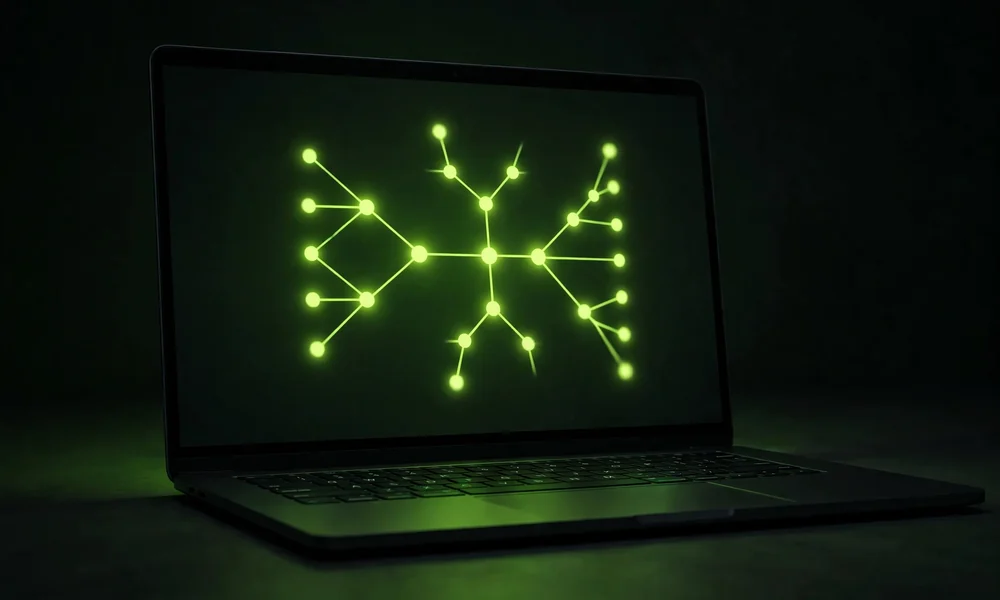
A branch is a separate line of work inside the same repository. The main branch, usually called main, holds the version that is considered stable and ready to use. When you start a new feature or fix a bug, you create a branch from main, do your work there, and leave main untouched until the work is ready.
Branches are cheap in Git, because a branch is simply a pointer to a commit rather than a copy of the files. Creating one takes a fraction of a second, and switching between branches changes only the files that differ. This is why teams create branches freely, sometimes one per feature, per fix, or per experiment.
Merging brings a branch back into main. Git compares the two lines of work, finds the changes each one made since they split, and combines them. If the changes touch different parts of the code, the merge happens cleanly and automatically, and a new merge commit records the combination.
Sometimes two branches change the same lines in different ways, and Git cannot decide which version to keep. This is called a merge conflict, and Git marks the disputed section so a person can choose the right result. Conflicts look alarming the first time, but they are a normal part of teamwork.
Comparing Git with other ways of saving work
Before version control, many people saved work by copying a folder and adding a date or a version number to its name. That method works for a while, but it breaks down quickly: folders multiply, nobody knows which copy is current, and merging two people’s edits means comparing files by hand.
The table below sets out the main contrasts.
| Aspect | Git | Numbered backup folders | Cloud document history |
|---|---|---|---|
| History kept | Every commit, with author and message | Only the copies someone remembered to make | Recent versions, for a limited time |
| Working offline | Yes; the full history is local | Yes, if the folders are on your machine | Usually no; needs a connection |
| Parallel work | Branches and merging built in | Very difficult; copies diverge silently | Live editing, but limited branching |
| Finding who changed what | Instant, with a searchable log | Guesswork from folder names and dates | Basic; often only recent editors |
| Best use | Code and any text-based project | Quick one-off backups | Shared documents and notes |
The practical lesson is that Git is built for work that changes often and is shared between people. Cloud document tools are excellent for writing together in real time, and numbered folders are fine for a quick backup, but neither one gives the precise, searchable history that Git keeps for code.
Working with a team and a remote repository
Most teams keep a shared copy of the repository on a hosting service, called the remote. You copy the remote to your own machine, work locally, and then push your commits up to share them. Other people pull those commits down, so everyone stays in step without sending files by email or message.
Pull requests are the usual way teams review work before it joins the main branch. You push your branch to the remote and open a request describing the change, and teammates read the differences, leave comments, and suggest improvements. Only when the work is approved is it merged, which keeps the main branch stable and gives every change a second pair of eyes.
Automation builds on this flow. When a branch is merged, a pipeline can run tests and deploy the result automatically. Our guide to CI and CD explains how that continuous integration and delivery works.
Remote repositories also serve as a backup. If your laptop is lost or damaged, the shared copy holds every commit you pushed, and you can recover the whole project by copying it down again. Work that was never pushed exists only on your machine, which is why teams push their branches regularly.
Strengths and limits
The greatest strength of Git is that history is cheap and complete. Every experiment can live on its own branch, every mistake can be undone by returning to an earlier commit, and every change carries a record of who made it and why. Teams can move quickly because the tool, rather than a set of rules, keeps their work from colliding.
Git is also fast and works offline, which matters when you are travelling or working on a slow connection. You can commit, branch, and review history without reaching a server, and share the results whenever you are back online.
The main limit is the learning curve. Concepts such as staging, rebasing, and resolving conflicts take time to feel natural. Most people learn the everyday commands first and pick up the advanced ones gradually.
Git is also designed for text, not for large binary files such as videos or huge image collections. It can store them, but each version adds to the size of the repository. Teams that need to version large media usually keep those files in a separate storage system.
Git checklist
- Commit often, with small changes grouped together and a clear message for each one.
- Write commit messages that explain why the change was made, not only what changed.
- Create a new branch for each feature or fix, and keep the main branch stable.
- Pull the latest changes before you start work, so you build on the newest version.
- Push your branch regularly, so your work is backed up and visible to your team.
- Review the differences before every commit, to catch accidental changes early.
- Resolve merge conflicts carefully, reading both versions before choosing the result.
- Use pull requests for review, so no change joins the main branch unchecked.
- Never commit passwords, keys, or other secrets; store those outside the repository.
Frequently asked questions
What is the difference between Git and GitHub?
Git is the version control tool that runs on your computer and tracks changes in a repository. GitHub is a website that hosts Git repositories online and adds tools for sharing, review, and discussion. You can use Git without GitHub, but most teams use both together.
Do I need the internet to use Git?
No. Committing, branching, and viewing history all work offline, because the full repository lives on your machine. You only need a connection when you want to copy changes to or from a remote repository hosted elsewhere.
What happens if I make a mistake in a commit?
Usually nothing is lost. You can make a new commit that reverses the mistake, or return the files to an earlier commit, because Git keeps the earlier snapshots. Rewriting history that has already been shared is riskier, so teams prefer to fix mistakes with a new commit.
What is a merge conflict?
It is what happens when two branches change the same lines in different ways and Git cannot decide which version to keep. Git marks the disputed section in the file, and a person reads both versions and chooses or combines the correct result.
How often should I commit?
As often as you complete a small, working piece of change, which for many developers means several times a day. Small commits are easier to review, easier to undo, and easier to understand in the history than one large commit covering a whole week of work.
Can Git be used for things other than code?
Yes. Git works well for any text-based work, including documents, notes, and website content, because it can show exactly what changed line by line. It is less suited to large binary files such as videos, where those line-by-line comparisons do not apply.
The bottom line
Git explained in one line is this: Git is a tool that records snapshots of your files, lets you work on separate branches, and combines those branches safely so a team can share work without losing earlier versions.
Start with the basics: commit small changes often, branch for new work, and push regularly. The advanced commands will make sense once those habits are in place.
This article is general information about how Git works, not advice about setting up version control for a particular project or team.