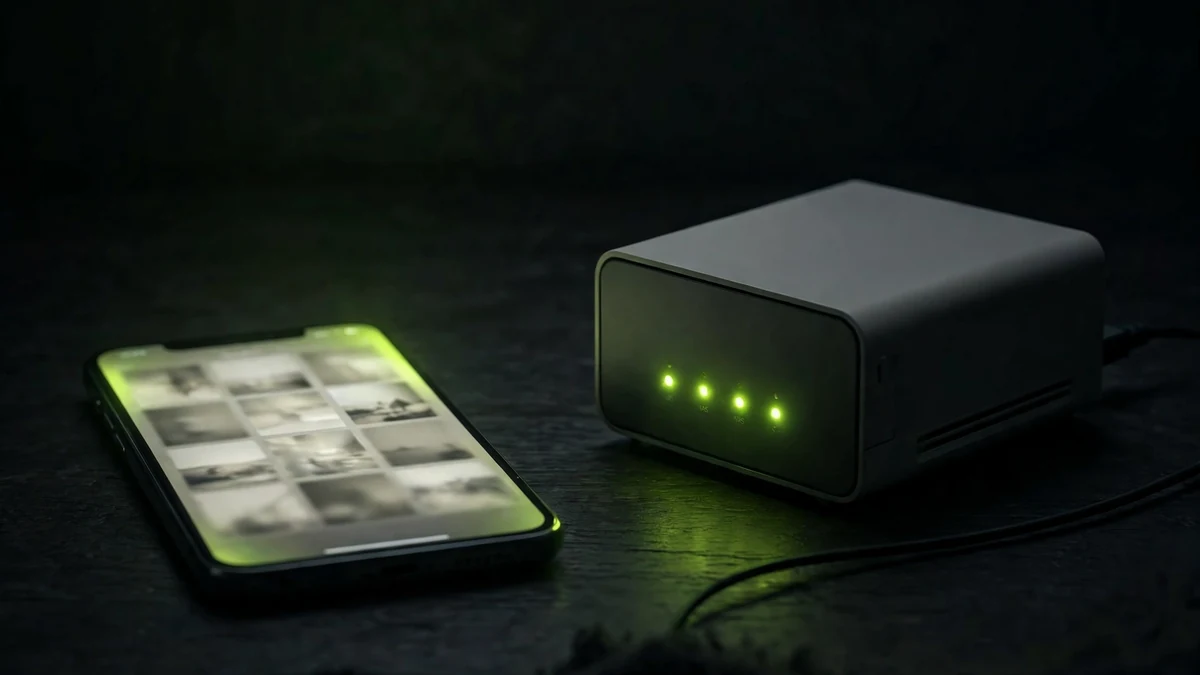
A phone to NAS backup moves your photos, videos and files from your phone onto a network-attached storage box in your home, instead of leaving them only on the handset or in a rented cloud account. The central question is simple: can a home NAS replace cloud backup for a phone? In short, yes, for the daily job of copying photos and files automatically — provided you switch on automatic upload, check it is running, and keep a second copy elsewhere, because a NAS on its own is not a backup.
A NAS protects you against a lost, stolen or broken phone, and against running out of space. It does not protect you against a failed drive, a house fire or ransomware unless the files also exist somewhere else.
Key takeaways
- Start with your NAS maker’s app: Synology Photos or Qfile Pro.
- Turn on automatic upload over Wi-Fi only; let the first backup run overnight while charging.
- Give every person their own NAS account.
- Check old photos are backed up before deleting anything.
- A NAS alone is not a backup: keep a second copy elsewhere.
- On iPhone, open the backup app regularly; iOS pauses idle apps.
What a phone to NAS backup actually does
A NAS is a small box of hard drives connected to your home network. Your phone talks to it over Wi-Fi, and a backup app copies new photos, videos and sometimes documents into a folder on the NAS, with no monthly subscription for the storage. Our guide to what cloud computing is explains the contrast: a cloud service rents space on someone else’s computers, while a NAS sits in your own home.
People usually do it for space, control or cost: it frees room without a larger cloud plan, the photos stay on hardware you own, and there is no recurring fee. The trade-off is responsibility: a cloud provider handles drive failures and updates for you, while with a NAS those jobs are yours.
The main methods compared
The best method depends on your NAS, how much setup you will do, and whether you want a photo library or a folder of files.
| Method | Best for | Automatic upload | Setup effort |
|---|---|---|---|
| Synology Photos | Synology owners | Yes | Low |
| Qfile Pro | QNAP owners | Yes | Low |
| Immich | Docker-capable NAS | Yes | Medium |
| Syncthing | Documents | Yes, folder by folder | Medium |
| SMB or WebDAV apps | Direct file access | Depends on the app | Medium |
| Manual copy over USB | Occasional backups | No | Low |
Best for: most households, your NAS manufacturer’s app is the right starting point: free, built for your hardware, and minutes to switch on. Move to Immich or Syncthing only if you need something it does not do.
Synology: backing up with Synology Photos
Synology Photos is Synology’s photo application for DSM 7.0 and later, free from Package Center. It replaced the older Moments and Photo Station apps, and its mobile app handles automatic backup of the camera roll.
Install Synology Photos from Package Center, then enable the user home service if DSM asks for it: each Personal Space lives in its home folder, at the path home, Photos. Open Synology Photos in a browser once with each account, so the Personal Space is created. On the phone, install the app, sign in, and switch photo backup on for Personal Space, all photos and videos, Wi-Fi only. The first backup is the slow one: a phone holding years of photos can take a night or two, so start it on Wi-Fi with the phone charging.
QNAP: backing up with Qfile Pro
Qfile Pro is QNAP’s free companion app for Android and iOS, and the recommended route for backing up a phone to a QNAP NAS. It browses files on the NAS and auto-uploads new photos and videos from the phone.
The app needs iOS 16 or Android 8.0 or later, and a QNAP NAS running QTS 4.0 or QuTS hero 4.5.0 or later. Install Qfile Pro, connect with your NAS account using the NAS address at home or your myQNAPcloud ID, then enable automatic photo backup on Wi-Fi only. On Android, switch battery optimisation off for Qfile Pro, or the system may stop the app in the background. On iOS, continuous background upload uses the location service, which can reduce battery life.
Other NAS brands and open-source options
Asustor, TerraMaster, Ugreen and similar brands ship their own mobile apps with photo backup, and the setup is the same: install the maker’s app, sign in, choose a folder, and switch on automatic upload over Wi-Fi. Check the app’s description first, because features vary by brand.
Immich is the best-known open-source alternative, and it works on any NAS that can run Docker. Its iOS and Android apps back up selected albums automatically, and its web interface offers a timeline, map and search close to a commercial photo service. It needs more setup than a manufacturer’s app, but it is portable: move hardware and Immich moves with you. Syncthing fills a different gap, because photo apps do not touch documents, downloads and recordings. It transfers files directly between phone and NAS, folder by folder, with no external server. On Android, the Syncthing-Fork app pairs with a Syncthing container on the NAS; set the phone’s copy to send only, so changes on the NAS never delete files from the phone.
Automatic versus manual backup
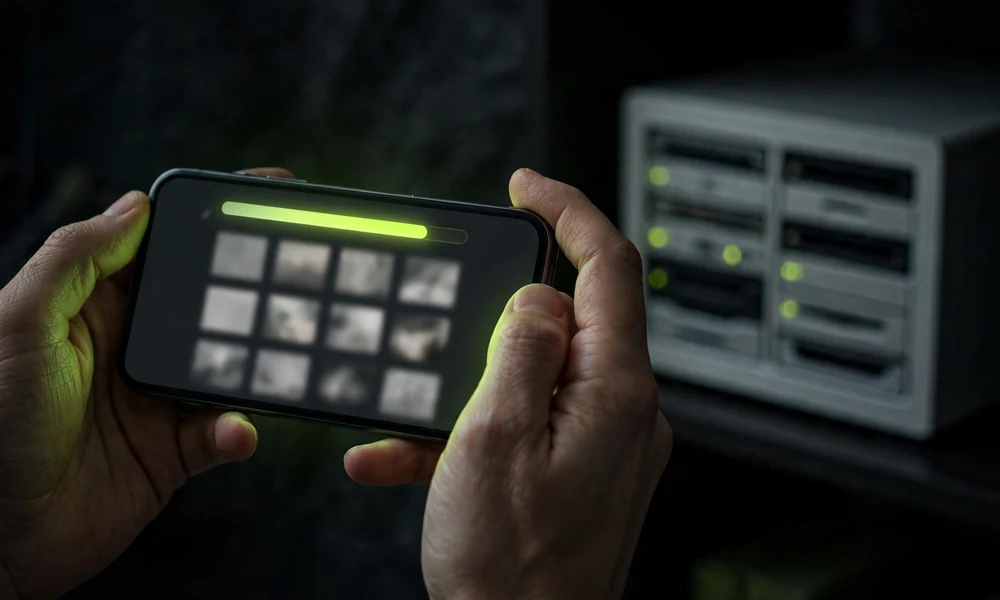
Automatic backup wins for almost everyone, because backup that depends on remembering stops happening. Once automatic upload is on, new photos copy to the NAS whenever the phone is on home Wi-Fi, usually within minutes. Manual backup still has a place: a copy over USB to a laptop is useful as a one-off before a holiday or before selling a phone. Its weakness is obvious: it only happens when you do it. Use automatic backup for photos, plus a monthly check of documents it does not cover.
iPhone and Android: what differs
On iPhone, iOS pauses apps it considers idle, so a backup app may stop uploading until you open it again. Open the backup app every few days, or leave it open while charging. On Android, battery optimisation can stop the backup app in the background; exempt it in the phone’s settings.
Formats differ too. iPhones store photos as HEIC files and Live Photos, which pair a still image with a short video clip, while Android phones usually store JPEG files. Most NAS apps handle both, but keeping the originals is safer: you can always convert a copy later. iCloud users face one extra trap: with Optimise Storage on, the iPhone keeps small copies on the handset and downloads full-size originals from iCloud only when needed, so the first NAS backup must download each original too. Let it finish, and do not delete photos until the NAS copy is confirmed. Our guide to AI backup architecture covers the same principle: a backup is only as good as the copy you can actually restore.
Backing up away from home
At home, the phone and the NAS share the same Wi-Fi network, and backup just works. Away from home, the phone needs a way to reach the NAS over the internet. Synology offers QuickConnect, which lets the app find your NAS without a fixed address, and a DDNS hostname as an alternative; QNAP offers myQNAPcloud, which plays the same role. Both can fall back to relaying traffic through the maker’s servers, which works but is slower. If the photos matter, use remote access rather than waiting for the catch-up at home.
Keeping the backup reliable
Reliability is a routine, not a setting. Once a month, confirm the oldest photos show as backed up, then check the newest photos too. If the newest photo on the NAS is weeks old, the backup has stalled: find out why before deleting anything from the phone.
The second habit is the second copy. Once the phone is cleared, the NAS holds the only copy of those photos, and a single drive failure would lose them. The widely used 3-2-1 approach is a good guide: three copies of important files, on two different kinds of storage, with one copy somewhere else. In practice, that means the NAS plus a USB drive, or a cloud account that receives a copy of the NAS; Synology’s Hyper Backup and QNAP’s Hybrid Backup Sync automate this on a schedule. Check free space every few months and keep roughly a fifth of it free. Give each person their own account with a strong password, never share the admin account, keep the NAS software updated, and switch on two-factor authentication for remote access.
Your phone to NAS backup checklist
- Choose the backup app for your NAS.
- Create a separate NAS account for each person.
- Switch on automatic upload, set it to Wi-Fi only, and back up all photos and videos.
- Exempt the backup app from battery optimisation on Android; open it regularly on iPhone.
- Start the first backup on Wi-Fi with the phone charging, and let it run overnight.
- Check the oldest and newest photos before deleting anything from the phone.
- Set up a second copy of the NAS, on USB or in cloud storage, on a schedule.
- Check free space on the NAS every few months.
- Repeat the backup check monthly, and after any software update.
Frequently asked questions
Can a NAS replace iCloud or Google Photos?
For backup, yes: a NAS with automatic upload copies your photos to hardware you own, with no monthly storage fee. What it does not replace is the wider service, such as sharing with people who do not have your NAS. Many households use both: the NAS as the main copy, and a small cloud plan as the off-site second copy.
How long does the first phone to NAS backup take?
It depends on how many photos and videos the phone holds and how fast your Wi-Fi is. A phone with years of photos can take a night or two, so start it on Wi-Fi with the phone charging. Later backups only copy new items.
Does phone to NAS backup work when I am away from home?
Yes, if remote access is set up: Synology’s QuickConnect and QNAP’s myQNAPcloud let the backup app reach the NAS over the internet, and a VPN works too. Without remote access, the backup waits until the phone is back on home Wi-Fi.
What happens if I delete a photo from my phone after backup?
That depends on the app. Most backup apps copy photos to the NAS and leave the NAS copy alone when you delete the phone original. Sync apps behave differently: deleting a file on one side can delete it on the other. Check whether your app backs up or syncs before you delete anything.
Is a NAS backup safe if the NAS drive fails?
A NAS with more than one drive can survive a single drive failure if it is set up with redundancy, but redundancy is not a backup: it protects against one failed drive, not against theft, fire, accidental deletion or ransomware. That is why a second copy matters. Our guide to hybrid cloud explained describes the same idea at larger scale.
The bottom line
A phone to NAS backup is one of the simplest upgrades a household can make. Pick the app your NAS maker provides, switch on automatic upload over Wi-Fi, give everyone their own account, and let the first backup run overnight. Then build the two habits that make it last: check it monthly, and keep a second copy elsewhere.